
Element and Ratio Configuration
IsoFind comes pre-configured for the most common stable and trace isotopes (C, N, O, Fe, Cu, Pb, Sr, Sb...), but its strength lies in its flexibility. Any isotopic system can be enabled, modified or created from scratch, including for radiogenic or unconventional isotopes.
Elements
→
Manage elements
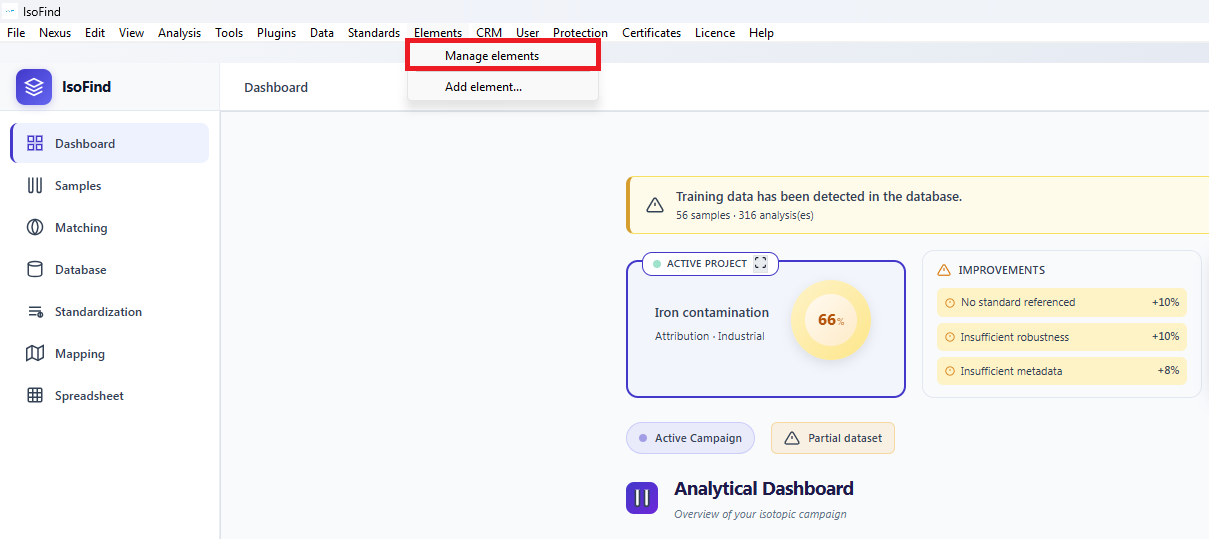 Figure 1: Accessing the global element manager.
Enabling or Disabling Elements
The manager uses a periodic table-based interface. Click on an element to enable or disable it in the software interface.
- Coloured elements: active and visible in all dropdown menus and filters.
- Greyed-out elements: available in the database but hidden from the interface.
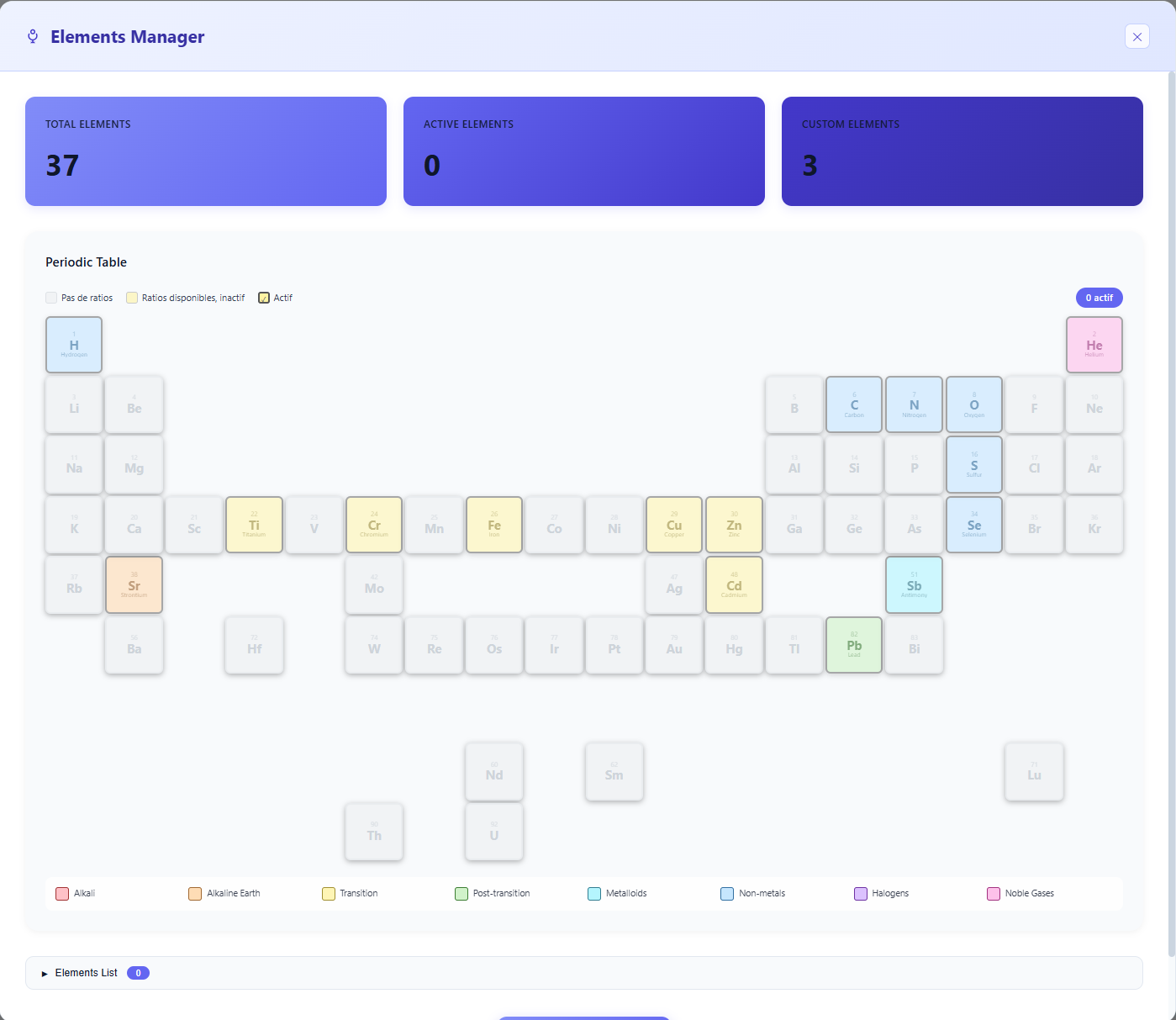 Figure 2: Interactive periodic table for selecting systems of interest.
Disabling an element hides it in all dropdown menus, filters and correspondence modules. This keeps the interface focused solely on the isotopic systems actually used in your analyses.
Editing an Element's Ratios
IsoFind classifies elements into three categories: Common, Advanced and Custom. The ratios of any element can be modified: adding a new notation, correcting a mass, removing an unused ratio.
Click the Pencil icon on the element tile to open the editor:
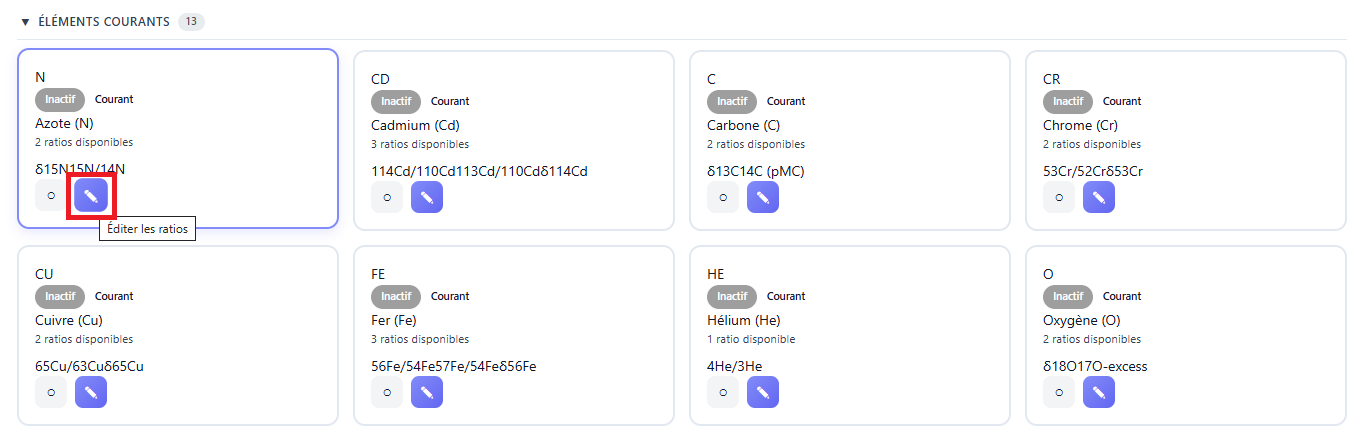 Figure 3: Accessing the ratio editor for an element.
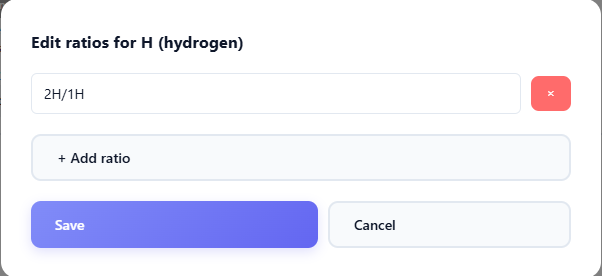 Figure 4: Interface for adding and removing isotopic ratios.
All notations are permitted, but maintaining consistent nomenclature between the ratios defined here and the headers of your CSV or .isof files is essential to guarantee automatic recognition on import.
Creating a Custom Element
For highly specific needs, an element entirely absent from the native libraries can be integrated via the Add a custom element button.
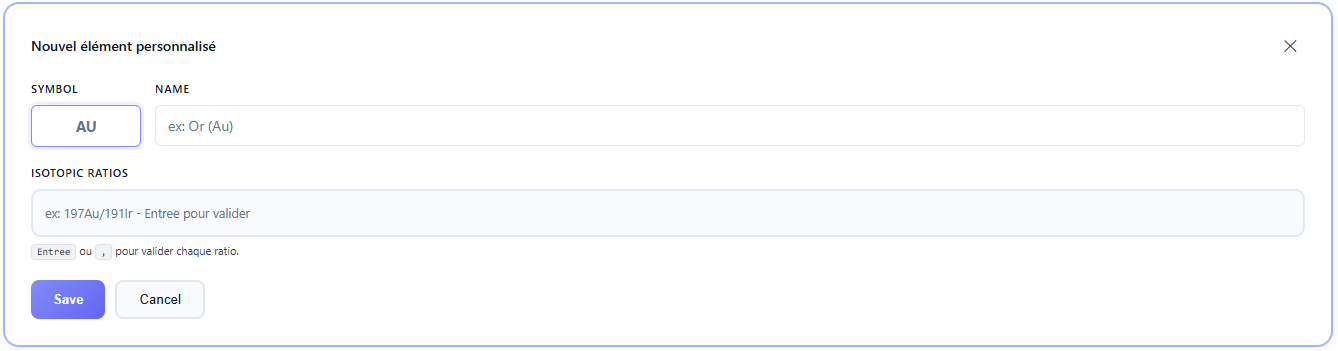 Figure 5: Creating a custom isotopic system.
Enter the chemical symbol, full name and define the desired ratios. Once saved, the element appears in the periodic table and becomes available for scoring, correspondence search and mapping.
Custom elements are fully supported by the .isof format: they are embedded in exports and recognised on import by any IsoFind installation, facilitating data sharing on unconventional isotopic systems.