
Activate a License
IsoFind operates in Research mode for free, with no time limit. Advanced features (Nexus, legal traceability, data protection, multi-user support) are accessible via a Research + Nexus or Pro license. This page explains the available plans, how the licensing system works, and how to proceed with activation.
Available Plans
Research
IsoFind Research
Free, no time limit
- Isotopic matching research
- Interpretive dashboard
- Element, standards, and CRM management
- Community database
- Plugin system
- CSV and Excel import
- Isotopic mapping
- IsoFind spreadsheet
Recommended
Pro
IsoFind Pro
Professional and Defense, annual subscription
- All Research + Nexus features
- Signature reconstruction after industrial transformation
- Full legal traceability
- Signed PKI export, certifiable reports
- AES-256-GCM database protection
- Multi-user and role management
- HMAC-SHA256 audit trail
- Certified professional PDF reports
How the Licensing System Works
IsoFind uses an entirely offline licensing system. No connection to an activation server is required, neither at the time of activation nor during subsequent startups.
Each license is a .license file cryptographically signed with ECDSA P-256. This file contains the license type, authorized features, expiration date, and the unique fingerprint of the machine on which it must be activated. The public verification key is compiled into the IsoFind binary. Verification is performed locally at every startup, without any network calls.
A license is tied to a specific machine via its hardware fingerprint. It cannot be transferred directly to another station: a change of machine requires a new license request (see the corresponding section below).
Activation Procedure
Activation is completed in four steps.
1
Generate the Machine Fingerprint
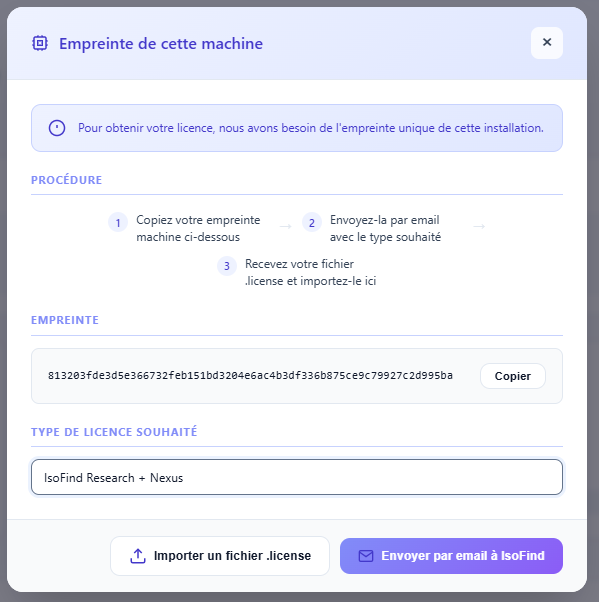 Figure 1: Machine fingerprint generation window with license type selector and email send button.
In IsoFind, open the License menu:
License Menu
→
License Management
→
Discover Options
→
Get a License
IsoFind generates and displays a machine fingerprint: a 64-character hexadecimal string derived from the station's hardware identifiers. The Copy button places it in the clipboard.
Figure 1: Machine fingerprint generation window with license type selector and email send button.
2
Send the Fingerprint by Email
Select the desired license type (Research + Nexus or Pro), then click Send by Email IsoFind opens the email client with a pre-filled email containing the fingerprint and selected license type, addressed to colin.ferrari@isofind.tech.
If the email client does not open (air-gap mode), copy the fingerprint manually and send an email to colin.ferrari@isofind.tech specifying the desired license type and the 64-character fingerprint.
3
Receive the License File
After processing the request, IsoFind generates a signed .license file for this machine and sends it by email. This file is nominative: it is linked to the exact fingerprint of the machine and the requested license type. It is only valid on that specific station.
4
Import the License File into IsoFind
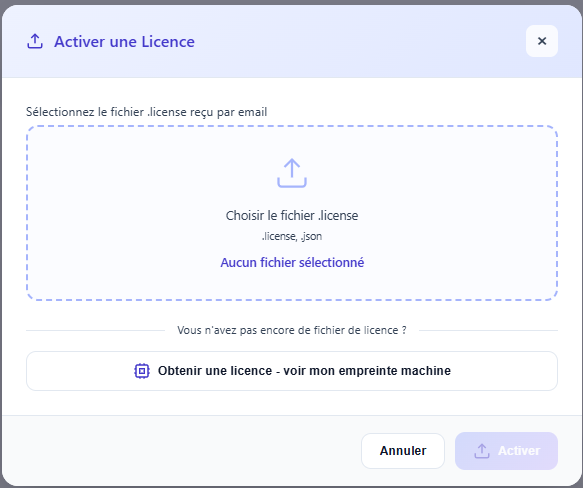 Figure 2: Interface for importing the .license file and confirming activation.
In IsoFind, open the activation menu:
License Menu
→
License Management
→
Import a License File
Select the .license file received by email, or drag and drop it into the designated area. IsoFind cryptographically verifies the signature, machine fingerprint, and validity date. If everything is correct, the license is activated immediately and IsoFind unlocks the corresponding features.
Figure 2: Interface for importing the .license file and confirming activation.
Activation is entirely offline. No internet connection is required at any stage, including verification at each startup. IsoFind can be activated on stations in isolated networks (air-gap).
Check Active License Status
The status of the current license can be consulted at any time:
License Menu
→
License Management
The status window displays the active license type, expiration date, number of days remaining, the serial number assigned to this activation, and the associated machine fingerprint. In Research mode (free license), this window indicates the active mode and provides upgrade options.
Renew an Expired License
Upon expiration, IsoFind automatically reverts to Research mode. Analytical data and workflows are fully preserved. Only features locked by the expired license become inaccessible.
To renew, follow the same procedure as the initial activation: generate the machine fingerprint (it remains identical on the same station), send an email to colin.ferrari@isofind.tech specifying that it is a renewal and the serial number of the expired license if available. IsoFind generates a new .license file with a new validity date.
Keep the received .license file in a safe place separate from the IsoFind station. In case of an operating system reinstallation on the same hardware, the machine fingerprint remains identical and the same license file can be re-imported without making a new request.
Transferring a License to a New Station
A license is tied to the hardware fingerprint of a specific station. It is not directly transferable. If the machine changes (new station, significant motherboard change), a new request is necessary.
For a station transfer, send an email to colin.ferrari@isofind.tech indicating the existing license serial number and the new machine fingerprint generated on the new station. IsoFind will proceed with migrating the license to the new hardware.
The machine fingerprint is tolerant of partial component replacements (adding RAM, changing a hard drive). However, it may change in the event of a motherboard replacement or a full reinstallation on different hardware. If in doubt, generate the fingerprint before and after hardware intervention to verify it remains identical.
Common Activation Errors
| Error Message | Probable Cause | Solution |
|---|---|---|
| Invalid license signature | .license file corrupted or modified after reception. | Request the file again from IsoFind. Do not open or modify the file before import. |
| Machine fingerprint mismatch | The license was generated for another station, or the fingerprint changed following a significant hardware modification. | Regenerate the fingerprint from IsoFind and contact IsoFind for a new license. |
| License expired | The expiration date recorded in the file has passed. | Proceed with renewal (see section above). |
| License file not recognized | The selected file is not a valid .license file, or its JSON structure is incorrect. | Verify that the correct file is selected. Ensure it has not been renamed with another extension. |
| Incompatible license type | The file corresponds to a different license type than expected. | Check the license type in the received email. Contact IsoFind if the type is incorrect. |
Contact
For any license request, renewal, station migration, or question regarding available features by plan:
Email: colin.ferrari@isofind.tech
Include in the email the machine fingerprint generated from IsoFind, the desired license type (Research + Nexus or Pro), and the context of use (academic laboratory, industry, defense). Specific rates are available for academic institutions and public organizations.
License requests are processed manually by IsoFind. The usual turnaround time is 1 to 2 business days. For urgent deployments in sensitive environments, specify the required deadline in the email.