
Managing CRMs (Certified Reference Materials)
CRMs are the pillars of analytical quality in isotopic geochemistry. In IsoFind, they fulfil three functions: a local database connected to GeoRem, attestation of the robustness of analysis batches, and automatic calculation of isotopic shifts.
IsoFind stores CRMs in a dedicated database (CRM.db), separate from the working database. This separation guarantees that a modification to samples cannot alter the certified reference values.
The CRM Manager
CRM
→
CRM list
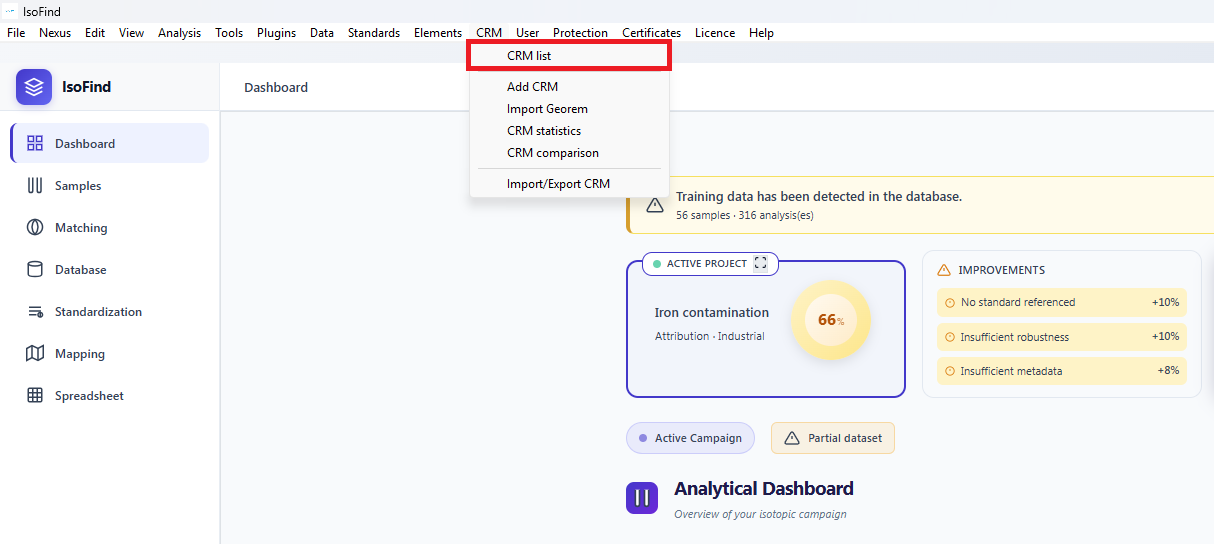 Figure 1: Accessing the reference material catalogue.
The manager is organised into five tabs covering consultation, GeoRem import, per-element statistics, comparison and library transfer.
Consultation and structure
IsoFind ships with a pre-installed CRM library. The View button opens the detailed record for a standard (e.g. AGV-2), with its certified elemental concentrations and isotopic signatures.
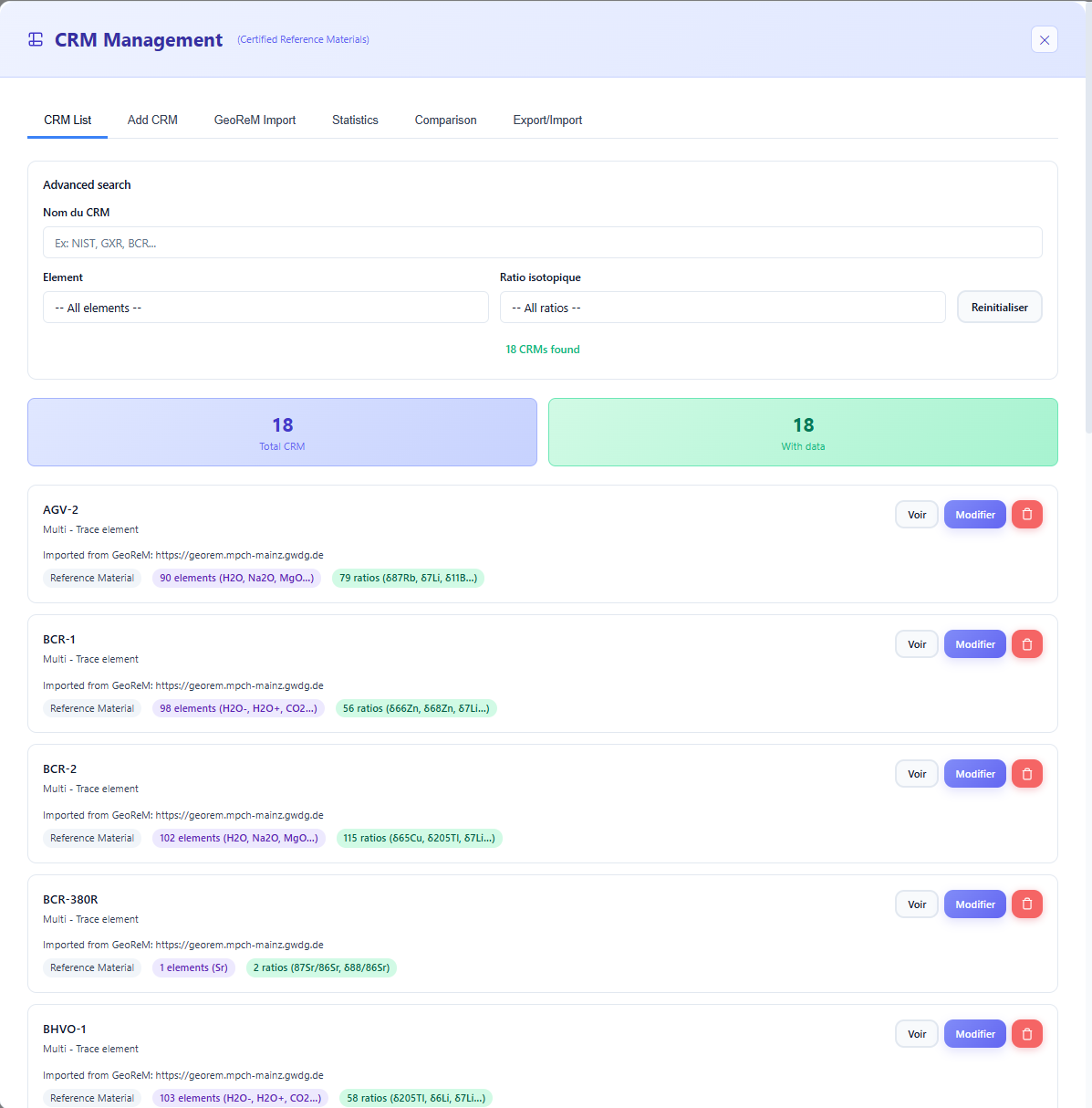 Figure 2: CRM list in the database.
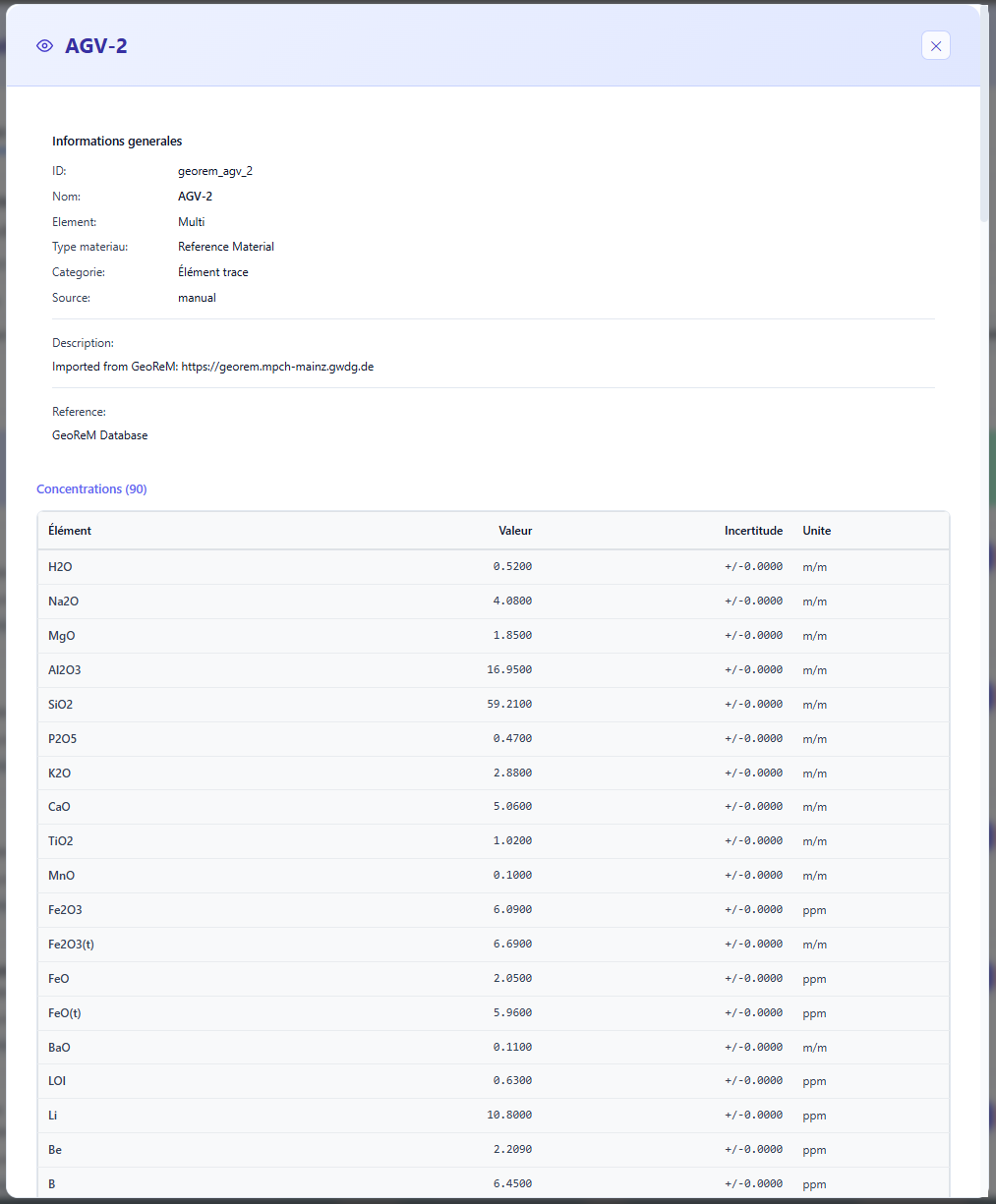 Figure 3: Detailed record for a reference standard.
When importing from GeoRem, uncertainties are generally not provided by the source. Enter them manually if they are critical for error propagation calculations.
GeoRem import
The GeoRem Import tab queries the global database to automatically retrieve values compiled from the geochemical literature.
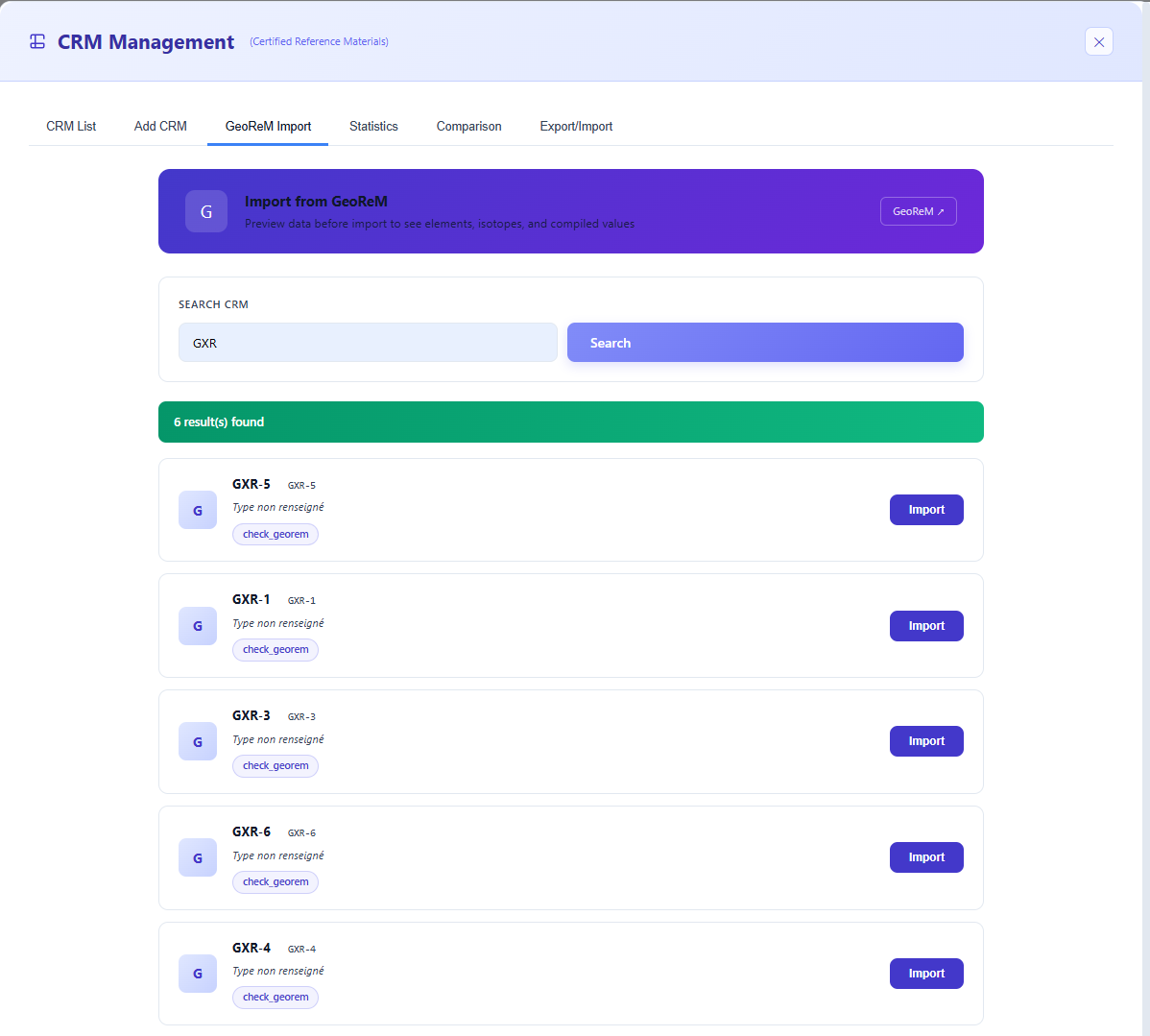 Figure 4: Search and automated import interface from GeoRem.
Not all CRMs listed on the GeoRem website are necessarily accessible via the API. If a standard cannot be found this way, use manual entry.
Statistics and search by element
The Statistics tab allows you to find which standard is most appropriate for a given element, without needing to know the CRM name in advance. Clicking on a concentration tile instantly filters all compatible CRMs.
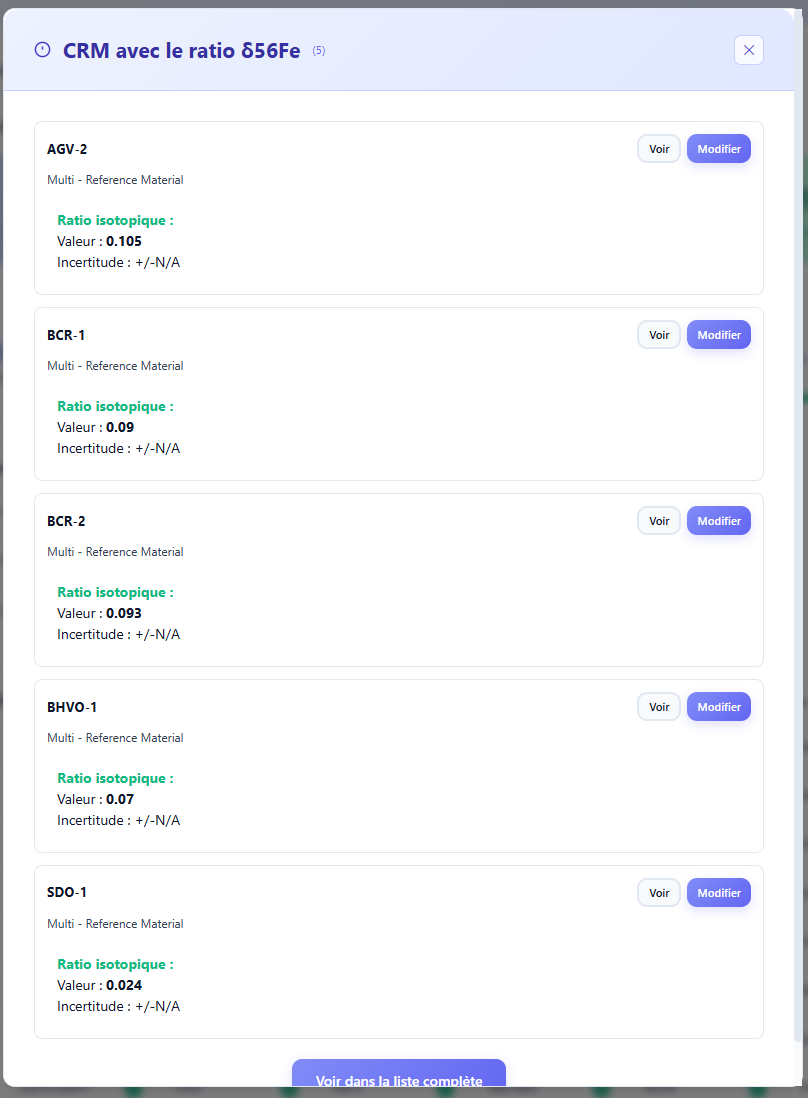 Figure 5: Identifying CRMs by isotopic system.
CRM comparison
The Comparison tab compares two or more CRMs on their elemental concentrations or isotopic signatures. Select the standards to compare by holding Shift, then choose to display all cross-referenced data or focus on a specific element.
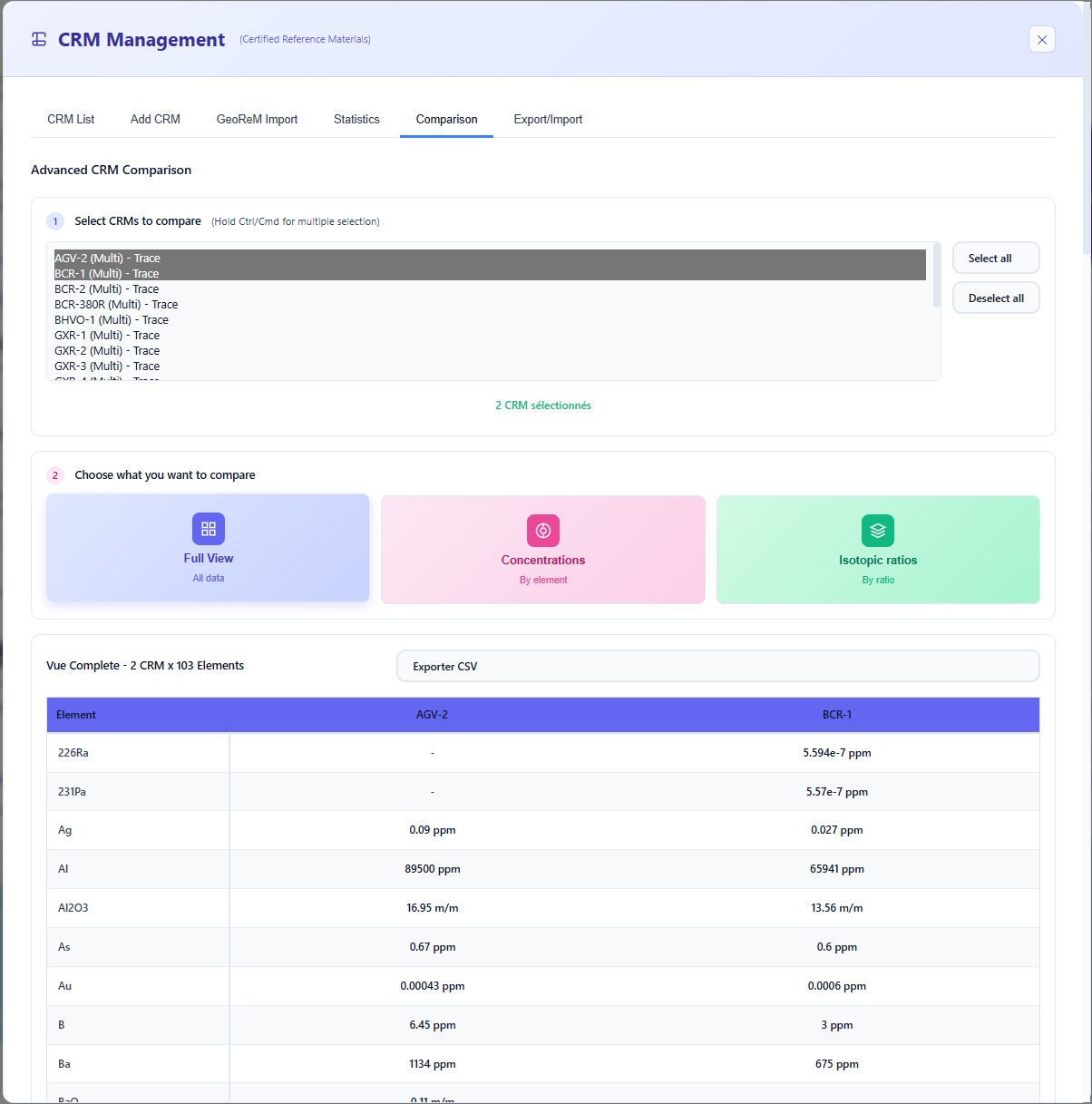 Figure 6: Multi-parameter comparison interface between standards.
This comparison is particularly useful for selecting the CRM whose matrix and concentration are closest to the unknown samples, which improves the correction of matrix effects during MC-ICP-MS or TIMS measurements.
CRM library import and export
The last tab is dedicated to sharing and backing up standard libraries. Two formats are available for export:
- .db format (SQLite): native IsoFind format, recommended for sharing between software users.
- .json format: universal format, for interoperability with other tools or for text-based archiving.
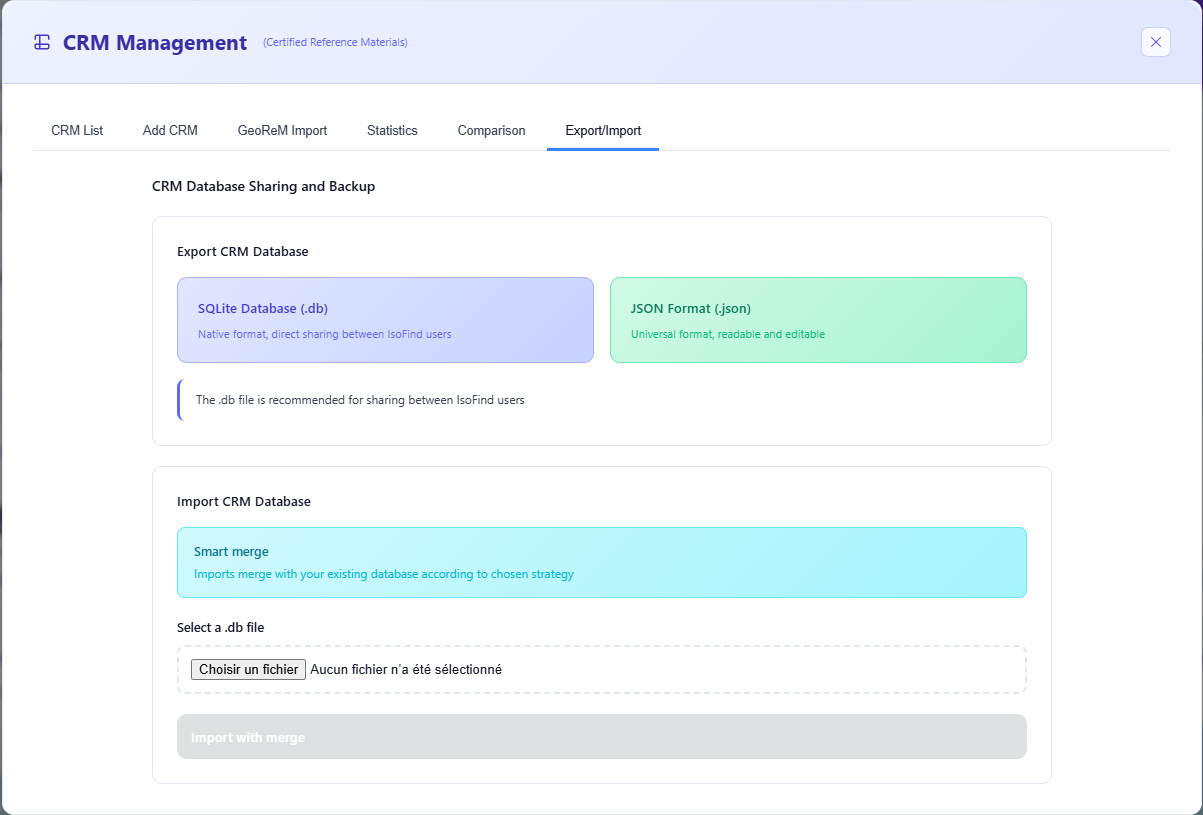 Figure 7: CRM library transfer interface.
Import applies a deduplication logic: the software compares entries and only imports CRMs absent from the local database. A standard already present will never be overwritten.
CRMs in an Analysis Batch
When importing a CSV (see Importing Data), certain samples can be designated as CRM controls directly from the import interface.
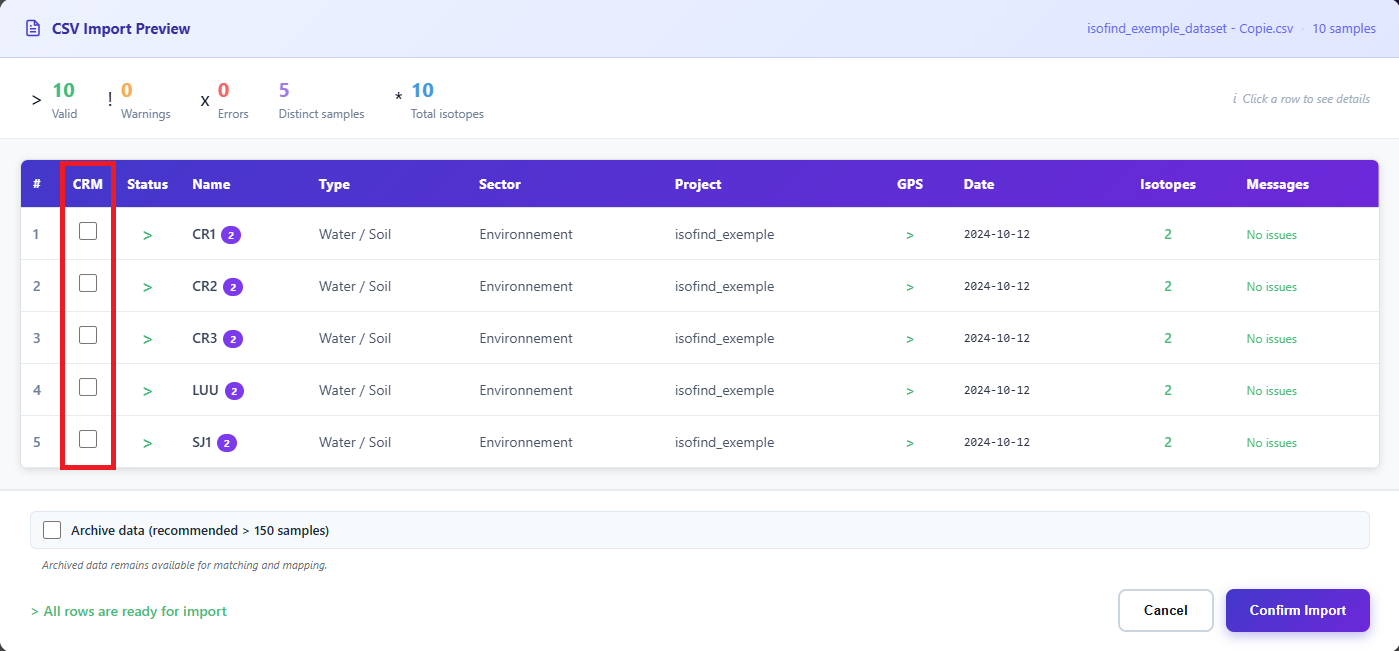 Figure 8: Configuring CRM controls during batch import.
By checking the corresponding boxes, IsoFind recognises the sample as a control and immediately compares the raw measurements against the certified values in CRM.db to detect any analytical drift. This step is the metrological foundation of complex Projects.
For sensitive material traceability missions, defining correct CRMs is the only way to attest to the validity of an isotopic signature before third parties or international certification bodies.
Manually Recording a CRM Analysis
Beyond batch import, the results of a CRM analysis can be recorded manually. This approach is essential for the temporal monitoring of equipment and the documentation of analytical drift.
Standardisation
→
Analysed CRMs
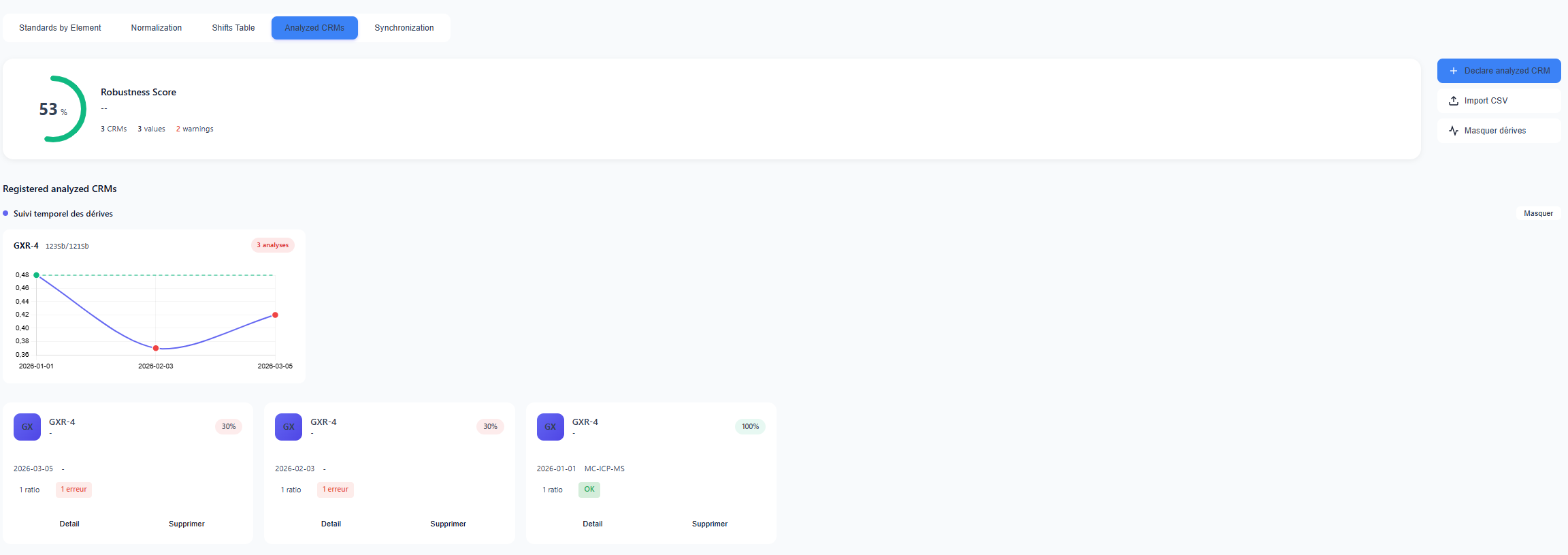 Figure 9: Accessing the quality control (QC) analysis register.
Click Record an analysed CRM to open the form. Enter the measured values and the uncertainty associated with the analysis session.
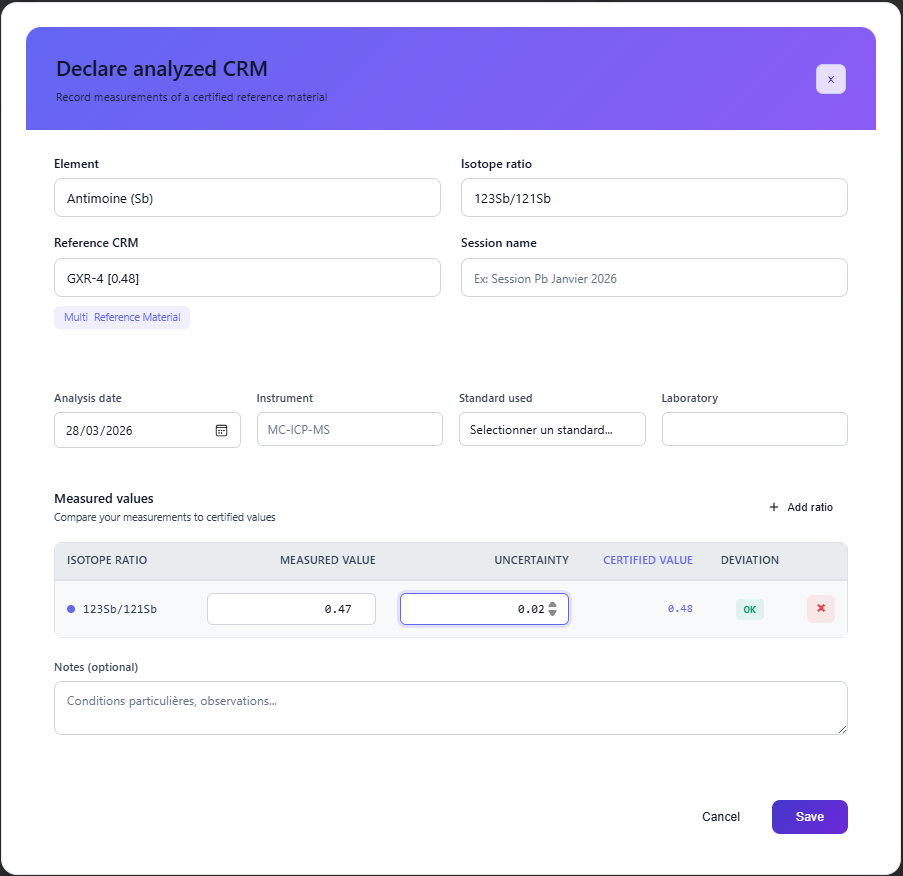 Figure 10: Control measurement declaration form.
The algorithm compares the entry against the CRM's certified value. If the certified value falls within the interval [measured value ± uncertainty], the validation score is maximum. A poor score triggers visual alerts and negatively impacts the overall project robustness score.
The history of these analyses allows IsoFind to track the evolution of laboratory performance. A consistently declining score over several weeks may indicate cone wear, line contamination or degradation of the working standard.