Thursday, 2 April, 2026

Plugins
The plugin system allows you to extend IsoFind's functionality without modifying the software itself. Each plugin is an independent module that integrates directly into the interface and can interact with your isotopic data via the internal API.
Accessing the Plugin Manager
Main menu
›
Plugins
›
Plugin manager
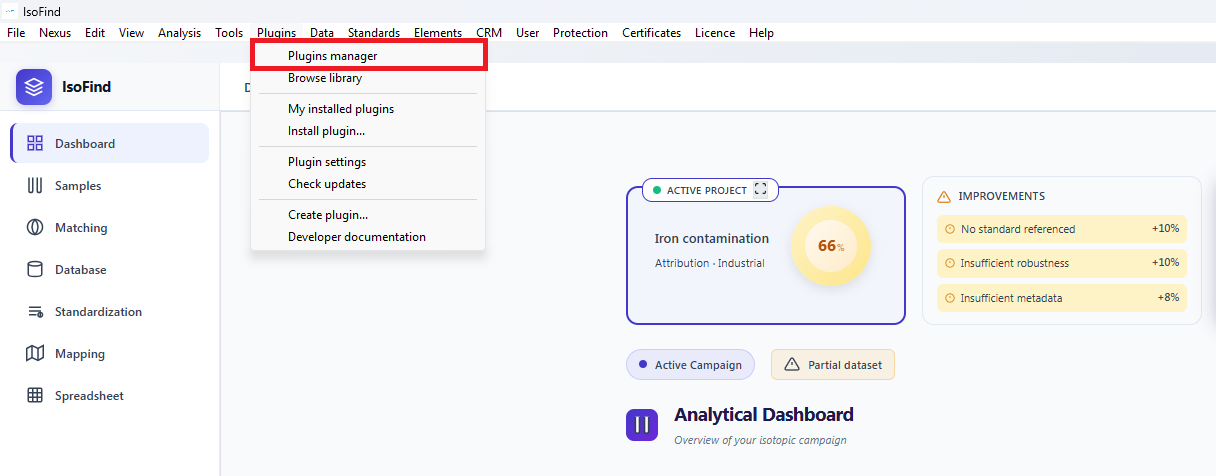 Figure 1: "Plugin manager" menu under the "Plugins" menu.
The manager centralises all plugins installed on your instance. It presents a dashboard with the total number of plugins, the number of active plugins and available updates.
When offline mode is enabled, an orange badge appears in the manager title. This mode blocks all network connections initiated by plugins.
Installing a Plugin
Plugin manager
›
Install a plugin
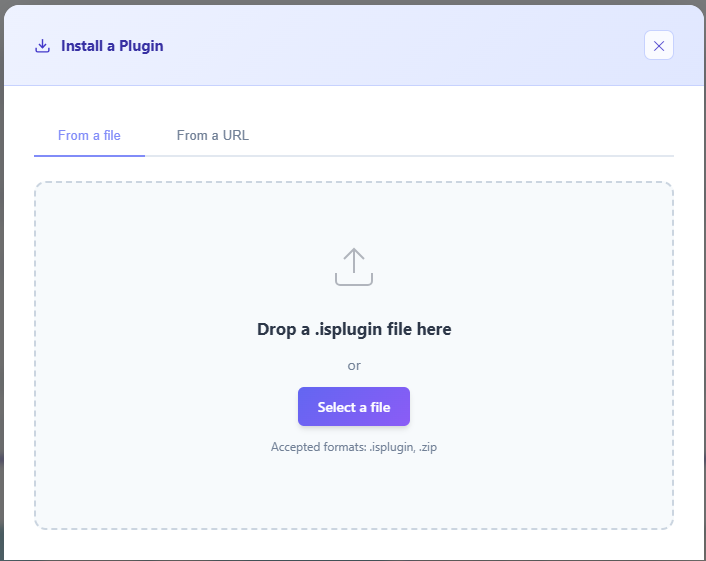 Figure 2: Plugin installation menu.
IsoFind offers two installation methods depending on your network configuration.
From a file
Drag an .isplugin or .zip file directly into the drop zone, or click Select a file to open the file browser. IsoFind reads the plugin manifest, verifies the required fields and installs the code automatically.
The installation proceeds through seven steps visible in the progress bar:
| Step | Operation |
|---|---|
| 1 | Environment preparation |
| 2 | File reading |
| 3 | Archive decompression |
| 4 | Manifest reading and validation |
| 5 | Main code extraction |
| 6 | Conflict detection |
| 7 | Finalisation and registration |
From a URL
Enter the direct URL of an .isplugin file in the provided field and click Download. IsoFind downloads and installs the plugin in a single operation. This method is not available when offline mode is active.
If JSZip is not loaded in your instance, installation from a .zip file will fail with an explicit message. Verify that the library is included in your configuration.
Plugin Structure
Each plugin is an archive containing at minimum two files: a manifest and a main code file. The manifest describes the plugin and its requirements; the code file contains the logic executed by IsoFind.
The manifest file
The manifest is a manifest.json file placed at the root of the archive. Three fields are required.
| Field | Type | Required | Description |
|---|---|---|---|
| id | string | Required | Unique plugin identifier, lowercase with hyphens |
| name | string | Required | Name displayed in the manager |
| version | string | Required | Version in X.Y.Z format |
| author | string | Name of the author or organisation | |
| description | string | Short description displayed on the plugin card | |
| category | string | Category: analysis, visualization, data, tools | |
| permissions | array | Permissions requested by the plugin (see Permissions section) | |
| main | string | Name of the main code file. Default: plugin.js | |
| language | string | javascript or python. Default: javascript | |
| github | string | GitHub repository URL for display in settings | |
| contact | string | Contact email address |
Permissions
A plugin must declare the permissions it needs in its manifest. The user can review these permissions before installation. Four permissions are available.
| Permission | Identifier | Access granted |
|---|---|---|
| Sample access | samples | Read and write isotopic data in the database |
| Run analyses | analysis | Execute internal analysis pipelines |
| Network access | network | HTTP and HTTPS requests to external servers |
| File access | filesystem | Read and write files on the local system |
The network permission is automatically blocked when offline mode is active, even if the plugin declares it in its manifest.
IsoFind API for Plugins
Each plugin has access to a global API object that exposes IsoFind interaction functions. This object is injected automatically at plugin execution.
Available functions
| Function | Description |
|---|---|
| API.getSamples() | Returns the list of samples from the active database |
| API.getSelectedSamples() | Returns only the samples selected by the user |
| API.showNotification(message, type) | Displays a notification in the interface. Types: success, error, info, warning |
| API.registerMenuItem(label, callback) | Adds an entry to IsoFind's main menu |
| API.createPanel(html) | Creates a floating panel in the interface with the provided HTML content |
| API.getConfig(key) | Reads a persistent configuration value specific to the plugin |
| API.setConfig(key, value) | Writes a persistent configuration value specific to the plugin |
Python Plugins
Manifest
›
language: "python"
IsoFind supports plugins written in Python via Pyodide, a full Python environment running in the browser. The numpy and pandas packages are loaded automatically. The scipy and matplotlib packages can be requested on demand.
Python code accesses IsoFind data via the isofind module injected automatically into the Pyodide environment:
| Python method | JavaScript equivalent |
|---|---|
| IsoFindAPI.get_samples() | API.getSamples() |
| IsoFindAPI.get_samples_df() | Returns a directly usable pandas DataFrame |
| IsoFindAPI.notify(message, type) | API.showNotification() |
Loading Pyodide from the CDN is blocked in offline mode. To use Python plugins without an internet connection, configure a local path to Pyodide in the plugin settings.
Conflict Detection
Before any installation, IsoFind automatically analyses the plugin code to detect potential conflicts with already-installed plugins and dangerous code patterns.
Checked conflicts
| Conflict type | Risk level | Description |
|---|---|---|
| Global variables | High | The plugin declares a variable already used by an installed plugin |
| Menu names | Medium | A menu entry shares the same name as an existing menu |
| Shared permissions | Low | Two plugins may modify the same data simultaneously |
| Similar category | Low | One or more plugins of the same category are already installed |
| localStorage.clear() | Critical | Deletion of all session data |
| document.write() | High | Can entirely erase the page content |
| eval() | High | Dynamic code evaluation, security risk |
| innerHTML injection | Medium | Injection of script tags into the DOM |
If a conflict is detected, a summary window lists the issues before presenting two options: cancel the installation or install anyway. Critical-level conflicts cannot be bypassed.
Enabling and Disabling a Plugin
Each plugin card in the manager has an activation toggle. Disabling a plugin unloads its code from memory without uninstalling it. The plugin retains its settings and can be re-enabled at any time.
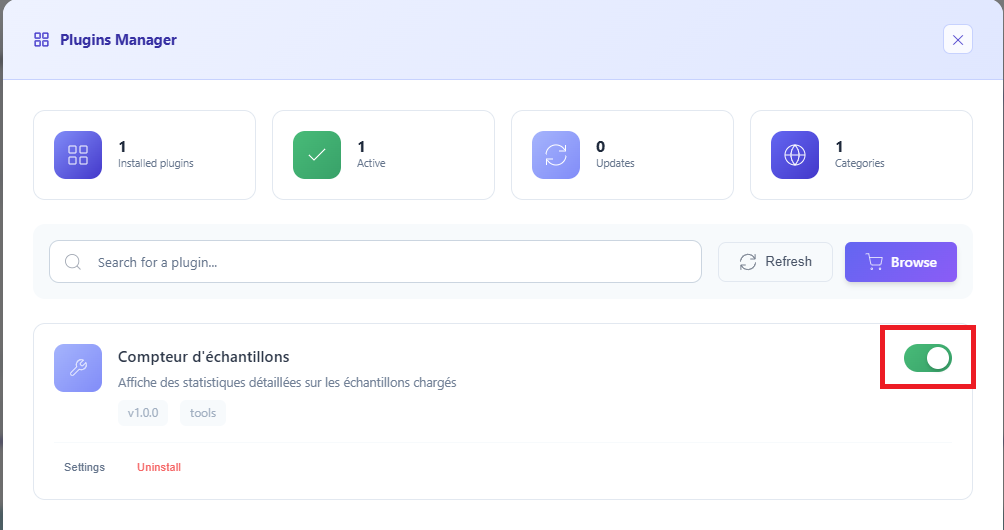 Figure 3: Enabling or disabling a plugin.
An enabled plugin is loaded automatically each time IsoFind starts. Its code runs in the global application context and can interact with the interface from launch.
Plugin Settings
Manager
›
Plugin card
›
Settings
The plugin settings window displays its complete information: version, author, description, identifier, category, installation date and contact address. If the plugin declares a GitHub repository in its manifest, a direct link is displayed.
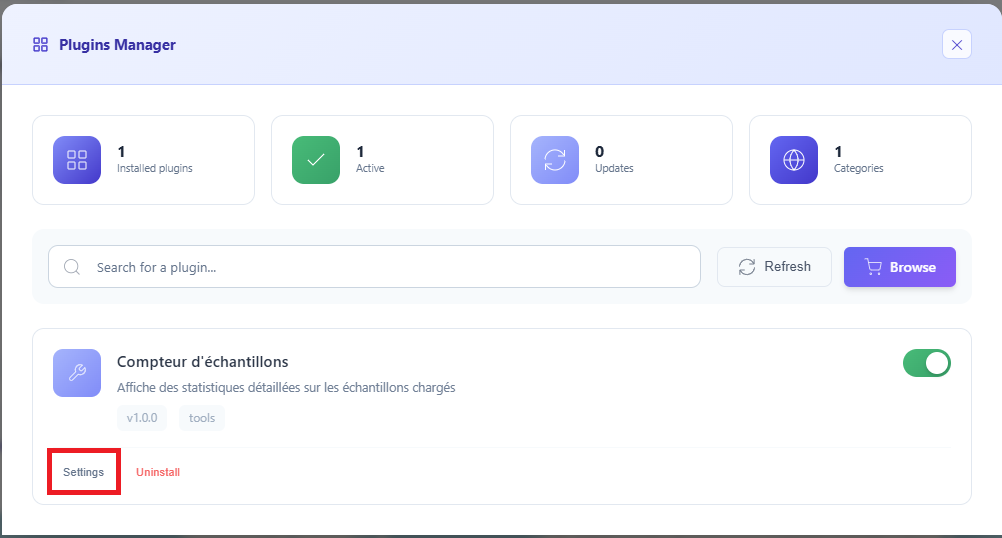 Figure 4: Accessing plugin settings.
A Check for update button compares the installed version against the version available in the online library. If an update is detected, confirmation is requested before installation. This check is disabled in offline mode.
Uninstalling a Plugin
Uninstalling permanently removes the plugin and its configuration data. The operation is irreversible. IsoFind requests confirmation before proceeding.
If the plugin was active at the time of uninstallation, its code is unloaded from memory before deletion. Menu entries registered by the plugin are removed immediately.
Global Plugin Settings
Plugins
›
Plugin settings
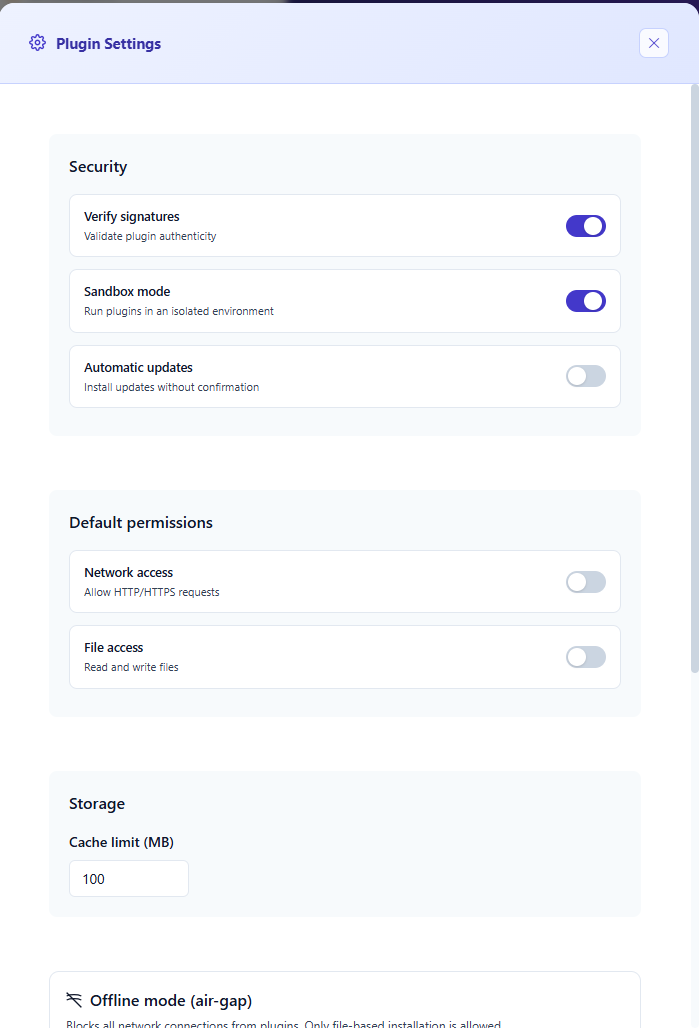 Figure 5: Global plugin settings.
Security
| Setting | Description | Default value |
|---|---|---|
| Verify signatures | Validates plugin authenticity before installation | Enabled |
| Sandbox mode | Runs plugins in an isolated environment | Enabled |
| Automatic updates | Installs updates without requesting confirmation | Disabled |
Default permissions
These settings define the permissions granted by default to newly installed plugins. They do not modify the permissions of plugins already in place.
| Permission | Default value |
|---|---|
| Network access | Disabled |
| File access | Disabled |
Offline Mode (Air-Gap)
Plugin settings
›
Offline mode
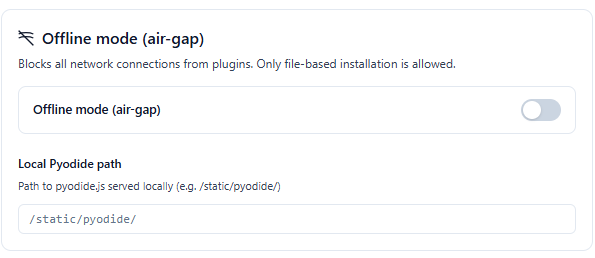 Figure 6: Air-gap mode settings.
Offline mode is designed for environments without internet access, particularly sensitive infrastructures or isolated network workstations. When active, all network connections initiated by plugins are blocked at the system level.
The following features are disabled in offline mode:
| Feature | Behaviour in offline mode |
|---|---|
| Installation from a URL | Tab hidden in the installer |
| Online library | Access blocked with notification |
| Update checks | Blocked with notification |
| Pyodide loading (CDN) | Blocked unless a local path is configured |
| Plugin network permission | Blocked even if declared in the manifest |
Local path for Pyodide
To use Python plugins in offline mode, you must download Pyodide and serve it locally. Enter the path to pyodide.js in the Local Pyodide path field. Example: /static/pyodide/.
Pyodide can be downloaded at github.com/pyodide/pyodide/releases. Place all files in a directory served by your IsoFind instance and enter the full path in the settings.
Exporting and Importing Plugins
The Export plugins section in settings allows you to save all installed plugins to an .isoplugins file. This file contains the metadata of all plugins and can be imported on another IsoFind instance.
To import a bundle, click Import an archive and select an .isoplugins file. IsoFind adds plugins absent from the instance without overwriting those already present.
The .isoplugins format contains only plugin metadata, not their source code. For a complete installation in an offline environment, also provide the corresponding .isplugin files.
Creating a Plugin
Plugins
›
Create a plugin
The creation wizard guides you through building a plugin in four steps. No prior knowledge of archive structure is required: IsoFind generates the manifest and prepares the exportable file.
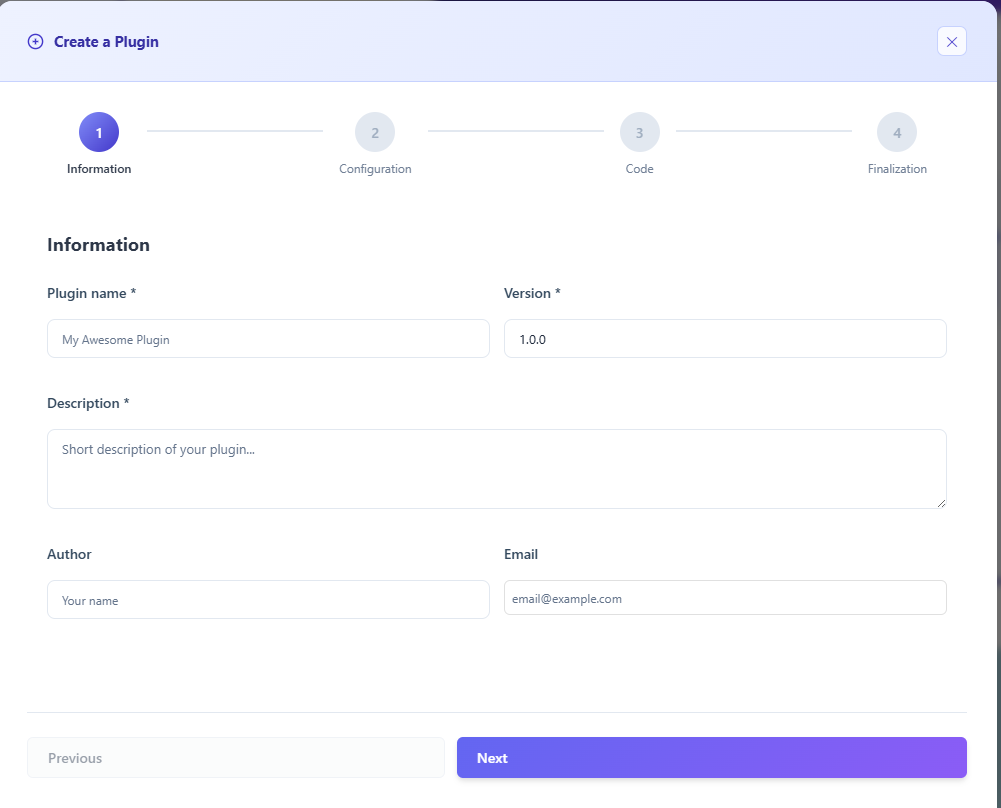 Figure 7: Plugin creation wizard.
| Step | Content |
|---|---|
| 1. Information | Name, version, description, author, email |
| 2. Configuration | Language (JavaScript or Python), required permissions |
| 3. Code | Code editor with starter templates |
| 4. Finalisation | Summary, export options (README, icon), file generation |
Available templates
Four starter templates are offered at the Code step. Each contains a functional structure ready to modify.
| Template | Typical use |
|---|---|
| Empty | Start from scratch, minimal structure only |
| Basic | Simple plugin with notification and menu entry |
| Analyser | Isotopic data processing and result display |
| Visualiser | Creating a graphical panel in the interface |
Plugin Library
Plugins
›
Browse the library
The library lists published plugins compatible with your version of IsoFind. It allows filtering by category and sorting by popularity, publication date or rating. Installation is one click from each plugin's details page.
The library is not accessible in offline mode. To distribute plugins in this context, use the .isoplugins bundle export and import.
To submit a plugin to the official library, see the Contribute page on the IsoFind website. Third-party plugins are subject to a code review before publication.