Thursday, 2 April, 2026

Workflow
This page describes work session management in the Nexus: the multi-workflow tab system, automatic persistence, database saving, export and sharing in .isofind format, and workflow execution.
The Tab System
The Nexus allows working on multiple workflows simultaneously via a tab system. Each tab has its own canvas, its own cards, its own connections and its own undo history. Tabs are independent of one another.
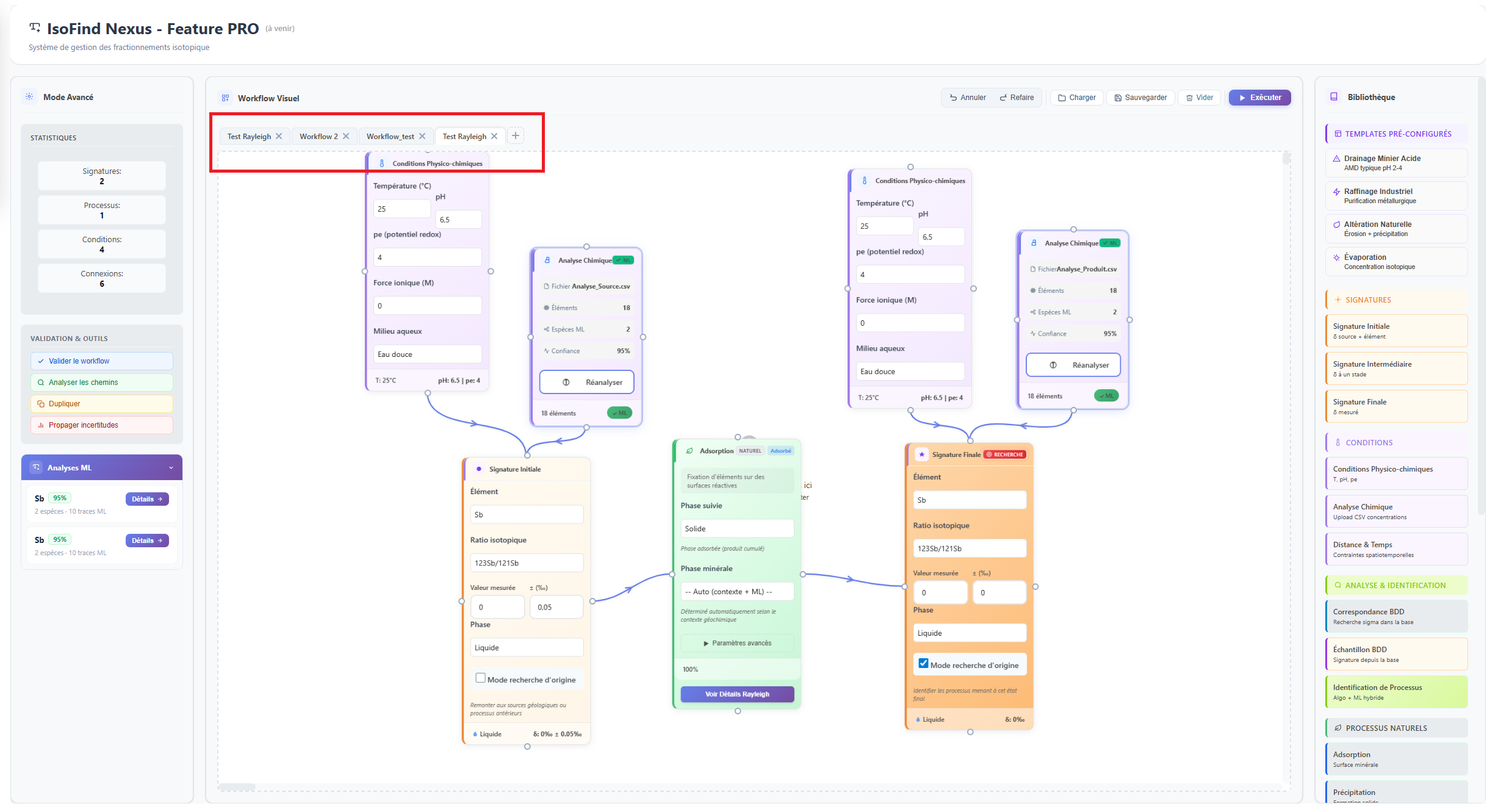 Figure 1: Tab bar with multiple workflows open simultaneously.
Creating a new tab
A new empty tab opens via the Nexus menu:
Nexus
→
New workflow
Or by clicking directly on the "+" tab in the top bar.
It is also possible to start from a preconfigured template rather than an empty canvas:
Nexus
→
Workflow templates
→
Choose a template
The four available templates (Acid Mine Drainage, Industrial Refining, Natural Weathering, Evaporation) load an entire workflow with pre-configured cards and already established connections in a new tab. The Custom workflow option opens a window allowing the tab to be named and starting from an empty canvas.
Navigating between tabs
Clicking on a tab activates it and switches the canvas, panels and calculation context to that workflow. A tab's name can be changed by double-clicking its label in the tab bar. Names are truncated to 28 characters in the bar.
The cross on each tab closes it. Content is lost if the tab has not been saved. There is no limit to the number of simultaneous tabs.
Automatic Session Persistence
The Nexus automatically saves the state of all open tabs to the browser's local storage. This session persistence runs continuously in the background, without manual action.
On the next Nexus startup, all tabs from the previous session are automatically restored with their exact content (cards, connections, positions) and the tab that was active at close is brought to the foreground, though ML models will need to be re-run.
Session persistence protects against accidental Nexus closures. It does not replace intentional database saving: in the event of software reinstallation or local storage clearing, sessions not saved to the database are lost.
Saving a Workflow
Database saving is permanent and independent of local storage. It allows a workflow to be retrieved after reinstallation or loaded in another session.
Save the active tab
Nexus
→
Save workflow
The active tab's workflow is saved to the database using its tab name as identifier. If a workflow with the same name already exists, it is updated. A numeric identifier is assigned to each save and displayed as confirmation.
Save under a new name
Nexus
→
Save as...
Opens an input window to assign a distinct name to the save. Useful for creating variants of the same workflow without overwriting the previous version.
Save the entire project
Nexus
→
Save project
Saves all open tabs at once under a common project name. Each tab is saved separately in the database with the project prefix to allow grouped reloading. This option is recommended when multiple workflows from the same research project need to be kept together.
Loading a Workflow
Nexus
→
Load workflow
Displays the list of all workflows saved in the database, with their name, last modification date and number of nodes. Clicking on a workflow loads it into the active tab if it is empty, or into a new tab if the active tab already contains a workflow.
The Load project option groups workflows by project prefix and reloads all of a project's tabs in a single operation.
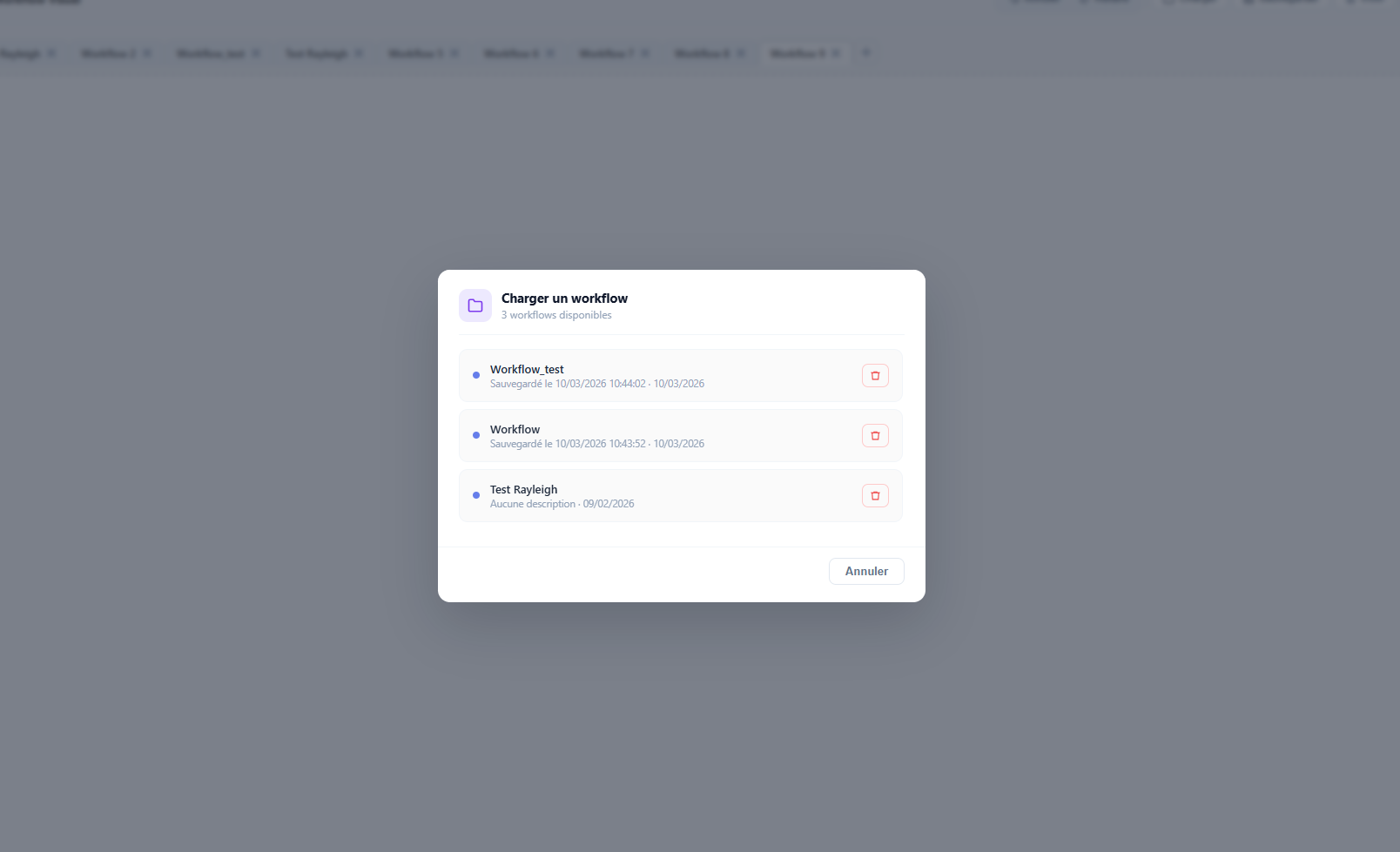 Figure 2: Load window listing workflows saved in the database.
Exporting and Sharing in .isofind Format
The .isofind format is IsoFind's native workflow exchange format. It allows a workflow or complete project to be exported to a standalone file, shared with other IsoFind users, and fully reimported.
Format structure
An .isofind file is a structured JSON file containing the following fields:
| Field | Description |
|---|---|
| version | Format version (currently 1.0). |
| app | Source application identifier (IsoFind). |
| created_at | ISO 8601 timestamp of file creation. |
| tabs | Array of included tabs. Each tab contains its label, its nodes (type, position, parameters) and its connections. |
| integrity | SHA-256 hash calculated on the file body before this field is added. Detects any external modification of the file. |
Exporting a .isofind file
Nexus
→
Share workflow
If multiple tabs are open, a window offers the choice of including only the active tab or all tabs in the exported file. The file is automatically named with a timestamp (workflow_YYYY-MM-DD.isofind) and downloaded locally.
Importing a .isofind file
Nexus
→
Import .isofind
The file is read and its integrity is verified before any loading. If the SHA-256 hash of the body does not match the integrity field, a warning signals that the file has been modified since export. The user can choose to continue or cancel the import. If the file contains multiple tabs, they are recreated in order, with the first one activated.
The .isofind format is particularly well suited to collaboration between colleagues on the same project, archiving analyses published in articles, and the reproducible transmission of a geochemical scenario with all its parameters. An .isofind file contains the complete workflow: a recipient can import it and obtain exactly the same calculation result by re-running the execution.
Exporting the Canvas as an Image
Nexus
→
Export as image
Exports a capture of the active canvas. The export is produced in high-resolution PNG format. Otherwise, a vector SVG export is generated as a fallback. The file is automatically named with a timestamp.
General Principles of a Valid Workflow
A Nexus workflow is a directed graph: nodes are cards, edges are the arrowed connections between them. The calculation engine traverses this graph in the direction of the arrows, from source to target, propagating isotopic values and uncertainties through each process.
For a workflow to be executable, it must respect a mandatory minimum structure and several consistency conditions.
Mandatory minimum structure
| Required element | Role | Minimum |
|---|---|---|
| Initial signature | Isotopic starting point of the workflow. Carries the source δ value, uncertainty, phase and analysed ratio. Can be replaced by a "database sample" card, which then takes all isotopic signatures of a particular sample from the user's database. | 1 |
| Geochemical process | At least one natural or industrial process connected to the initial signature. This is what carries the fractionation. | 1 |
| Analysis card | Calculation trigger point. It collects the results of all connected processes and produces the predicted output signature. | 1 |
Consistency conditions checked at validation
Beyond the minimum structure, the engine checks the following points before authorising execution:
All nodes in the workflow must be connected. A node with no incoming or outgoing connection is considered isolated and generates a validation warning. Arrows must point from source to target (or in reverse) in the logical direction of the geochemical process. The same isotopic element must be consistent across all signature cards in the workflow. If a conditions card is present, it must be connected to at least one process for its values to be taken into account in the fractionation and speciation calculations.
Always verify the direction of arrows to ensure they go in the direction you intend. You can start from a final signature to search for the initial signature, or conversely, start from a known initial signature and simulate the processes from that point.
Kinetic and Rayleigh Charts
After execution of a workflow containing Rayleigh or kinetic-type processes, the Nexus generates visualisation charts of the fractionation curves. These charts are accessible from the results panel or directly on the analysis card after calculation.
Rayleigh chart
The Rayleigh chart represents the evolution of isotopic composition as a function of the reacted fraction f, for three simultaneous curves:
The residual reservoir curve shows the evolution of δ in the source phase as the reaction proceeds. The instantaneous product curve represents the composition of the product formed at each instant, offset by the factor ε relative to the reservoir. The cumulative product curve integrates all of the product formed since the start of the reaction, which converges towards the initial reservoir value as f tends towards 1 (total mass balance).
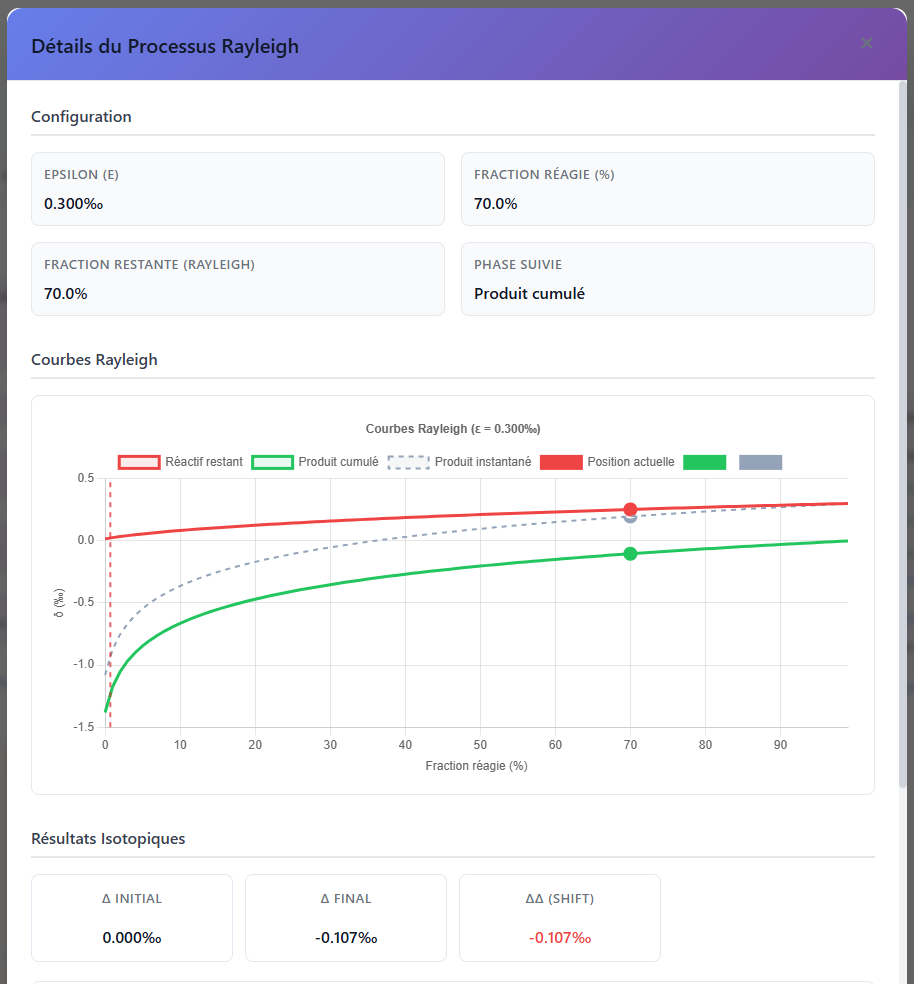 Figure 3: Rayleigh chart with the residual reservoir, instantaneous product and cumulative product curves as a function of the reacted fraction.
The δ value observed in the analysed sample is represented by a point on the chart. Its position relative to the three curves allows estimation of the reacted fraction compatible with the measured signature, and evaluation of whether the sample corresponds to an instantaneous product, a cumulative product, or a residual reservoir at a given stage of the reaction.
Kinetic chart
For kinetic processes (rapid evaporation, diffusion, non-equilibrium precipitation), the chart displays the evolution of δ as a function of time or degree of progress, with the kinetic coefficient α distinct from the thermodynamic equilibrium coefficient. The difference between the equilibrium curve and the kinetic curve is explicitly plotted, making it possible to visualise the magnitude of the deviation due to kinetic effects under the conditions defined by the conditions card.
Mass balance verification
On both chart types, the Nexus displays a mass balance indicator. At any point in the reaction, the sum of the contributions of the residual reservoir and the product formed must reconstitute the initial isotopic value. Any significant deviation from this balance indicates an inconsistency in the parameters (initial δ value incompatible with ε and f, or poorly defined tracked phase). The mass balance is displayed numerically below the charts with a green/red colour code depending on whether it is respected or not.
The Tracked phase field on each process card tells the engine which phase to calculate as output: the residual reactant or the product formed. This choice is decisive for chart interpretation. For an adsorption process, for example, tracking the solid (adsorbed) phase or the residual aqueous phase does not produce the same curve or the same signature prediction.
Uncertainty propagation
The Nexus propagates analytical uncertainties through every step of the workflow. The uncertainty on the initial signature δ is combined with the uncertainty on ε of the process according to standard propagation rules. The predicted δ value at workflow output is therefore accompanied by a calculated uncertainty that accounts for all cumulative error sources at each process. This propagated uncertainty is displayed on the charts as a grey envelope around the curves, and numerically in the results table.
Executing and Validating a Workflow
Validate
Nexus
→
Validate workflow
Validation verifies the structural consistency of the workflow before any calculation: presence of at least one initial signature, at least one connected geochemical process, and an analysis card. It also detects isolated nodes without connections. Errors and warnings are listed in the tools panel. An invalid workflow cannot be submitted to the calculation engine.
Execute
Nexus
→
Execute workflow
Runs the full calculation on the active tab's workflow. The engine traverses nodes in connection order, applies the fractionation models, queries ML contextualisation if available, and displays results in the analyses panel. Execution can also be triggered from the Execute button in the canvas toolbar.
Modification History
Nexus
→
Modification history
Displays the list of successive workflow states kept in memory since the session was opened. Each state is timestamped. Clicking on a state restores the workflow to that configuration, allowing a return to a previous point beyond simple undos (Ctrl+Z).
The modification history is kept in RAM for the active tab only. It is lost when the tab or software is closed. To permanently preserve a previous version of a workflow, use the Save as function before making significant changes.