Thursday, 2 April, 2026

Importing Data
IsoFind accepts several input formats: raw CSV files, Excel files and certified .isof files. The ingestion engine automatically recognises the structure of your data, identifying isotopic ratios, associated uncertainties (2σ) and matrix metadata without manual intervention.
During any CSV or Excel import, data is previewed and analysed before any write to the database. The algorithm detects missing fields, inconsistencies and excessively high uncertainties, and flags each alert before confirmation.
CSV Data Structure
The table below describes the columns recognised by IsoFind. A single sample may have multiple elements or ratios: repeat the element_N, isotope_ratio_N, etc. columns by incrementing the numeric suffix.
| Field (CSV header) | Description | Example |
|---|---|---|
| name Required | Unique sample identifier. | ANT-001, Ech-Ref-04 |
| material_type | Nature of the analysed matrix. | Stibnite, Schwertmannite, Soil |
| sector | Geographical or industrial sector. | Mining Area, Northern Territories |
| classification | Role of the sample in the tracing project. | source or daughter |
| collection_date | Sampling date. | YYYY-MM-DD (e.g. 2026-03-17) |
| latitude / longitude | GPS coordinates for mapping. | 44.5667, -123.2833 |
| element_1 | Analysed chemical element. | Sb, Sr, Pb, As |
| isotope_ratio_1 | Name of the measured ratio. | 123Sb/121Sb, 87Sr/86Sr |
| ratio_value_1 | Numerical value of the ratio. | 0.74563 |
| uncertainty_1 | Measurement uncertainty (2σ). | 0.012 |
| standard_1 | Reference standard used. | NIST SRM 3102a, VSMOW |
If two samples share the same name, or if a sample in the CSV shares a name with an existing database entry, they are merged. Global metadata (GPS, classification) is updated with the new values, but isotopic data is appended without replacement. No data is lost.
Source / daughter classification
IsoFind distinguishes two roles for its provenance calculations. Source samples have a known and certified origin (e.g. mine, reference site). Daughter samples have an unknown or suspected origin that is being traced (e.g. contaminated river water). If the classification column is absent or empty, the sample is treated as neutral.
IsoFind distinguishes two roles for its provenance calculations. Source samples have a known and certified origin (e.g. mine, reference site). Daughter samples have an unknown or suspected origin that is being traced (e.g. contaminated river water). If the classification column is absent or empty, the sample is treated as neutral.
Importing from a CSV or Excel File
Data
→
Batch import samples
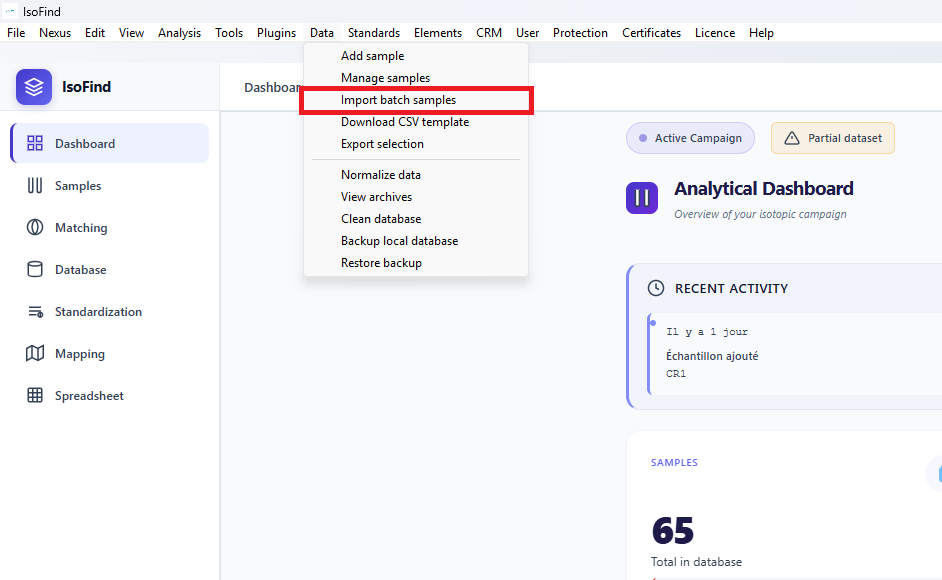 Figure 1: Batch import samples menu under the Data menu.
A preview window opens. The parser automatically identifies which IsoFind columns your headers correspond to and formats the data according to the software's internal structure.
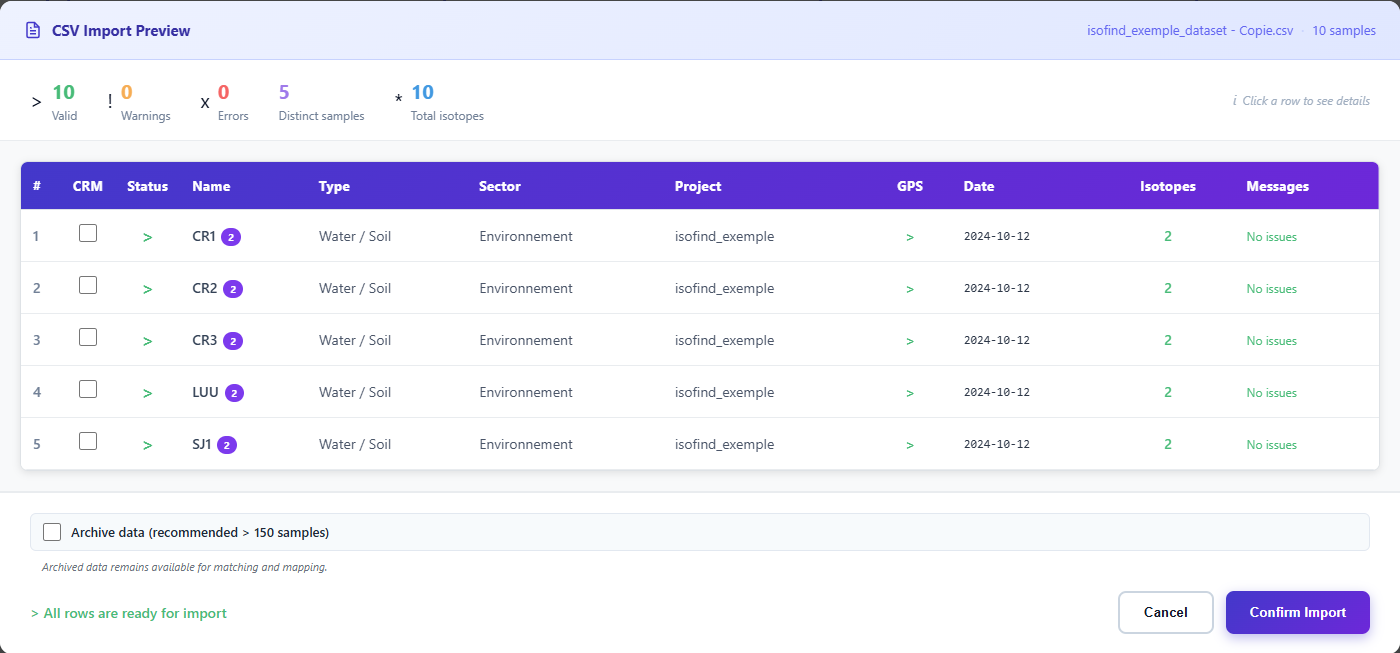 Figure 2: Preview window for CSV or Excel data.
Clicking on a sample opens a detail view showing how the software has interpreted each row.
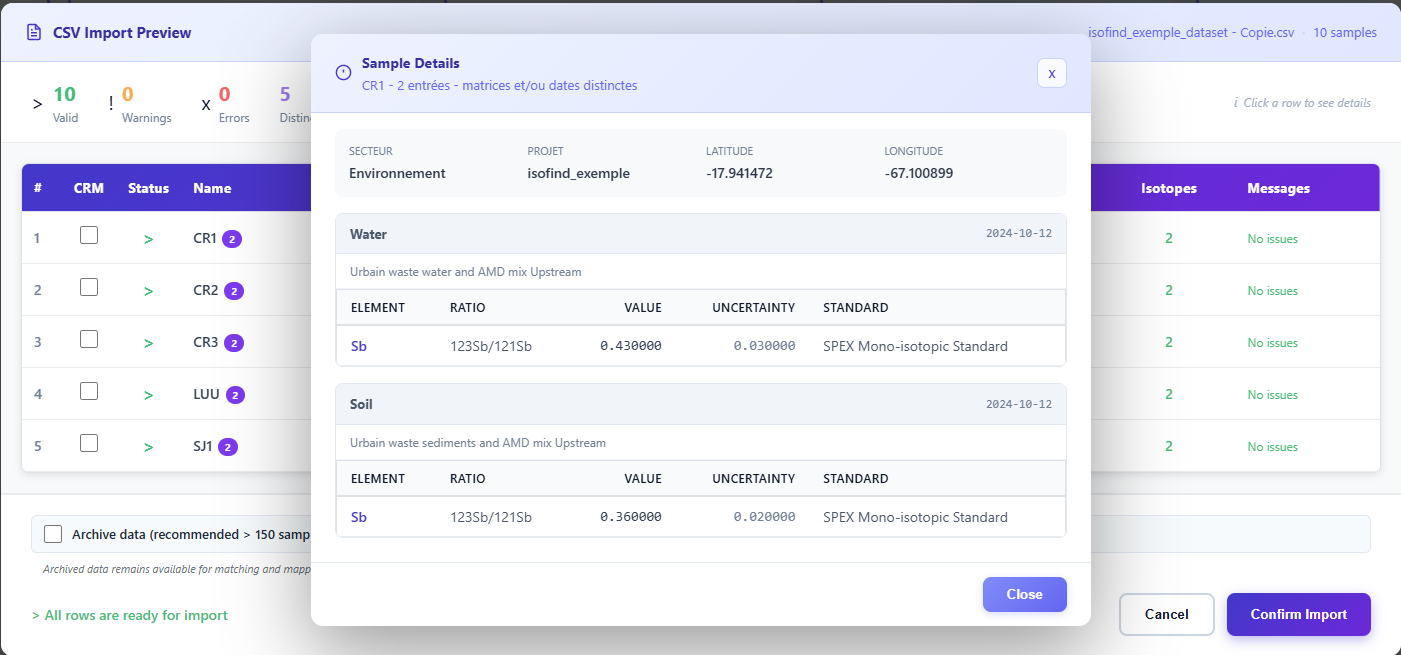 Figure 3: Detailed preview of an individual sample.
If the result is as expected, click Confirm import to write the data to the database. The operation is automatic and requires no further action.
Import Warnings and Errors
The algorithm automatically detects inconsistent data, missing important fields and corrupted values. Alerts are displayed directly in the preview window, before any write operation.
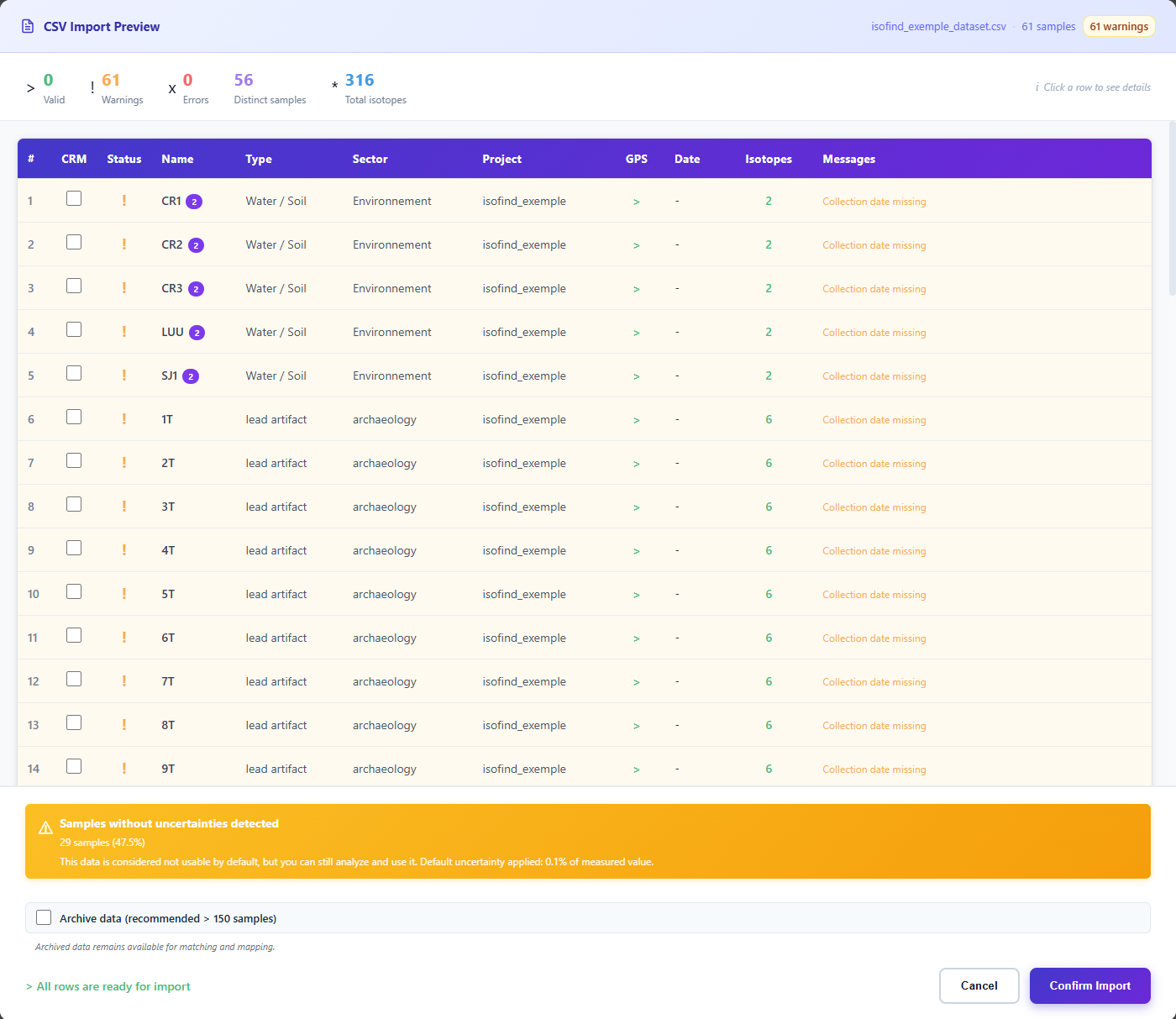 Figure 4: Preview with detected warnings.
In this example, two points of attention are flagged:
- Missing collection dates: the affected samples will be imported without a timestamp.
- Missing uncertainties: a default uncertainty of 0.1% of the measured value is applied to preserve data usability by the calculation engines.
These warnings do not block the import, but they have a direct impact on the quality of provenance analyses and the robustness score of the affected samples. A complete dataset significantly improves the defensibility of results.
Importing from a .isof File
The .isof format (Isotopic Open Format) embeds both the isotopic data, their complete analytical metadata (methods, purification yields) and one or more integrity and provenance certificates. It is natively supported by IsoFind.
1. Verify Integrity Before Importing
Before importing a file received from a third party, it is recommended to verify its integrity and provenance:
Certificates
→
Verify a .isof file
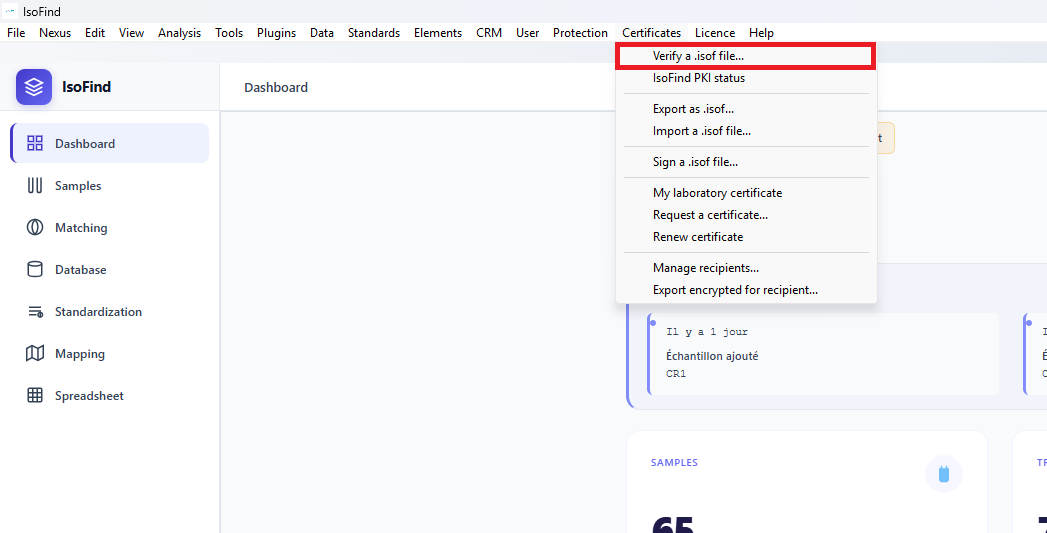 Figure 5: Menu for verifying the integrity of a .isof file.
This menu indicates the signature level present and its status:
| Result | Meaning |
|---|---|
| Level 1 valid | Integrity confirmed: the data has not been modified since export. |
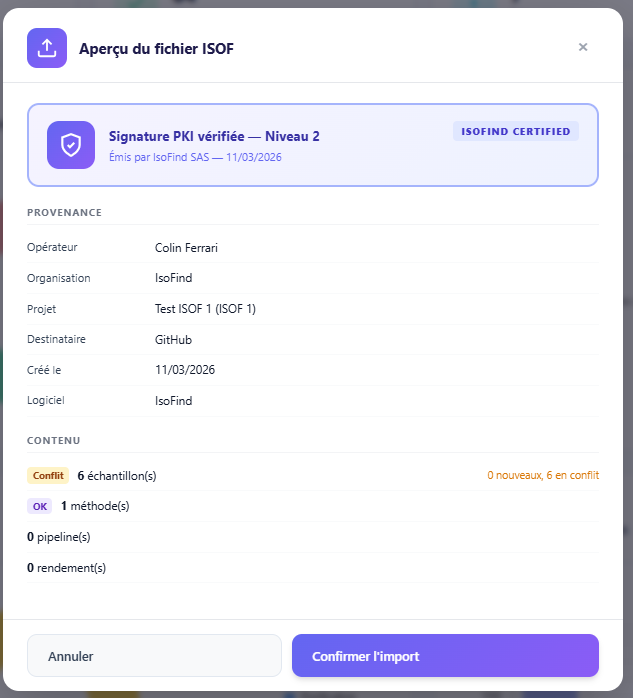
| Level 2 valid | Authenticity confirmed: data signed by an IsoFind-certified laboratory via ECDSA PKI. |
| Invalid signature | The file has been modified after creation. The data no longer matches the original signature. |
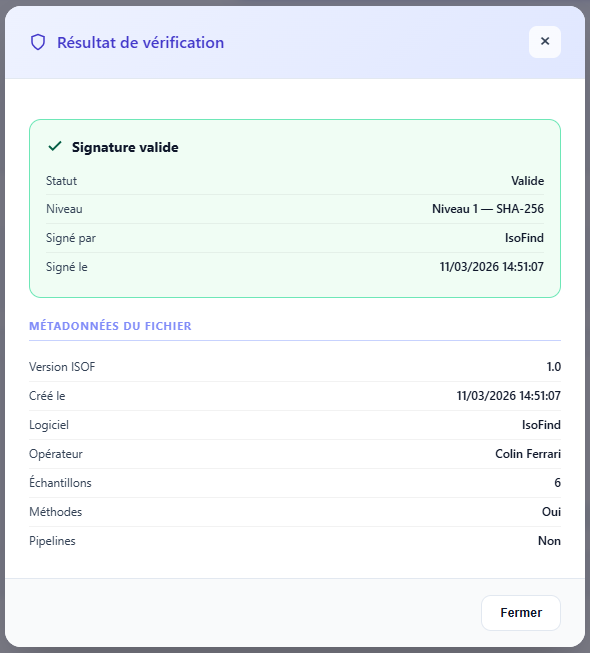
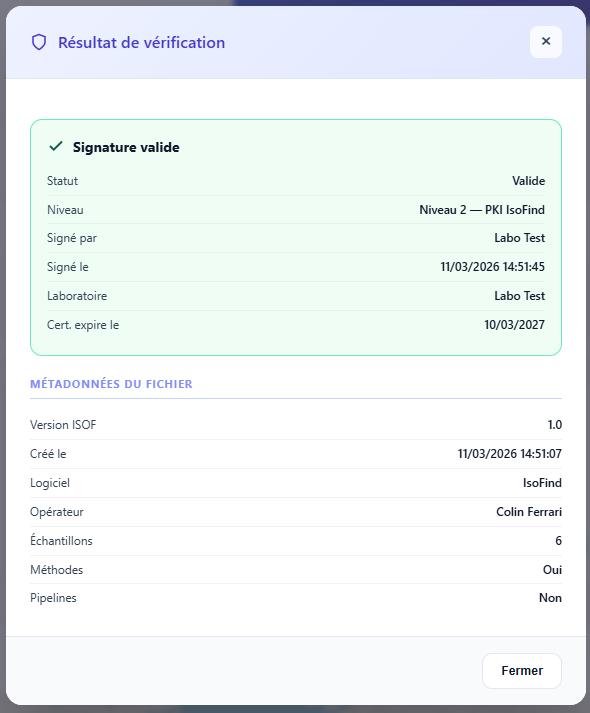
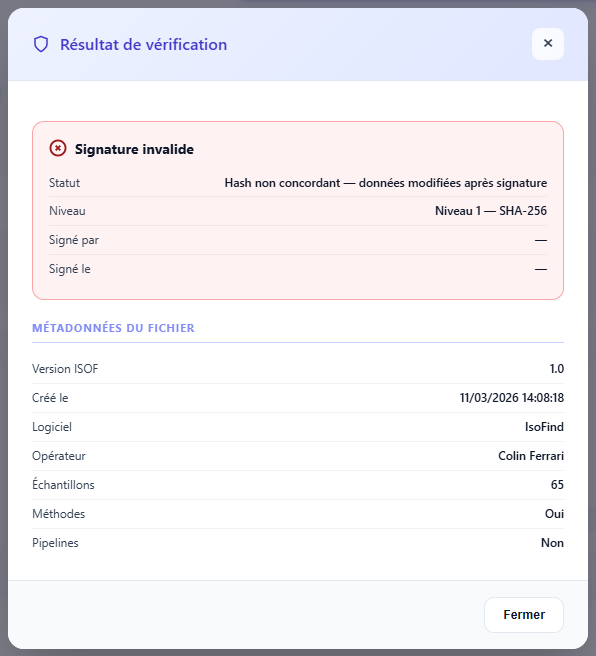
A .isof file can also be encrypted for a specific recipient. In that case, only IsoFind installed on the recipient's machine can decrypt it. See the Digital Signatures section for details on encryption and the PKI.
2. Import the .isof File
Certificates
→
Import a .isof file
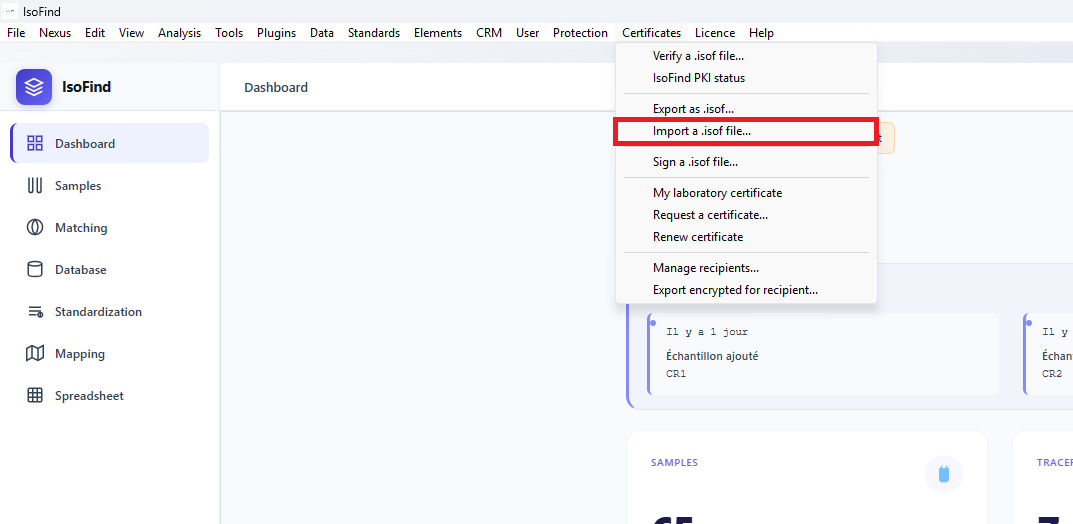 Figure 6: Menu for importing a .isof file.
The preview indicates the signature status and the data that will be imported. Two actions are available depending on the status:
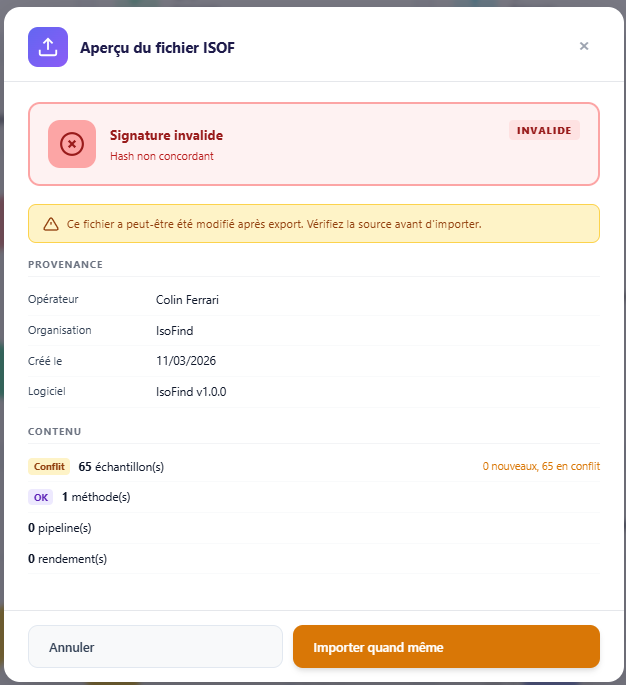
The Import anyway button is available even when the signature is invalid, if you are certain of the file's provenance. The import will be recorded in the audit log with a note of invalid signature.