Wednesday, 1 April, 2026

Preferences Configuration
The preferences menu is IsoFind's control centre. It allows you to adjust the interface, calculation units and advanced parameters according to your laboratory protocols.
Edit
→
Preferences
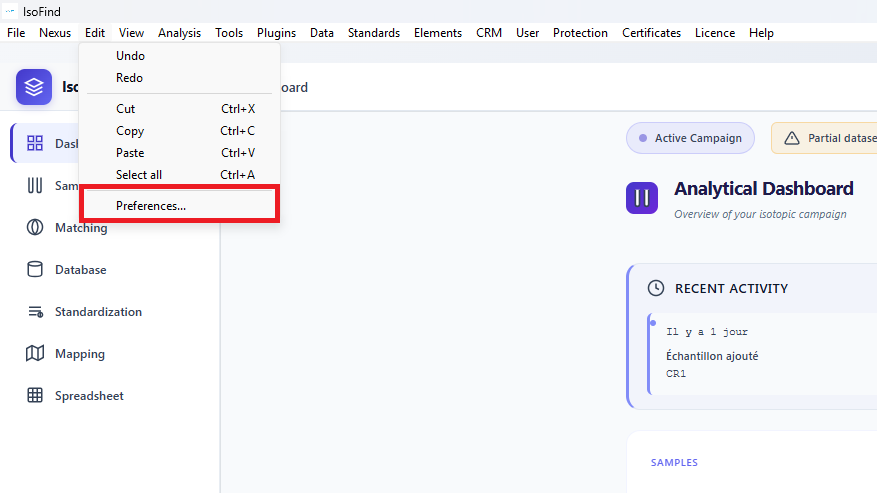 Figure 1: Accessing the preferences panel from the Edit menu.
General Tab
Groups the fundamental software parameters: localisation and behaviour on close.
- Language: switches the interface between French and English. The change is applied immediately.
- On close: choose between fully closing the software or minimising it to the system tray (the server remains active for a quick restart).
- Auto-save: frequency of automatic SQLite database backups.
- Confirmations: enable or disable alerts before permanent deletion.
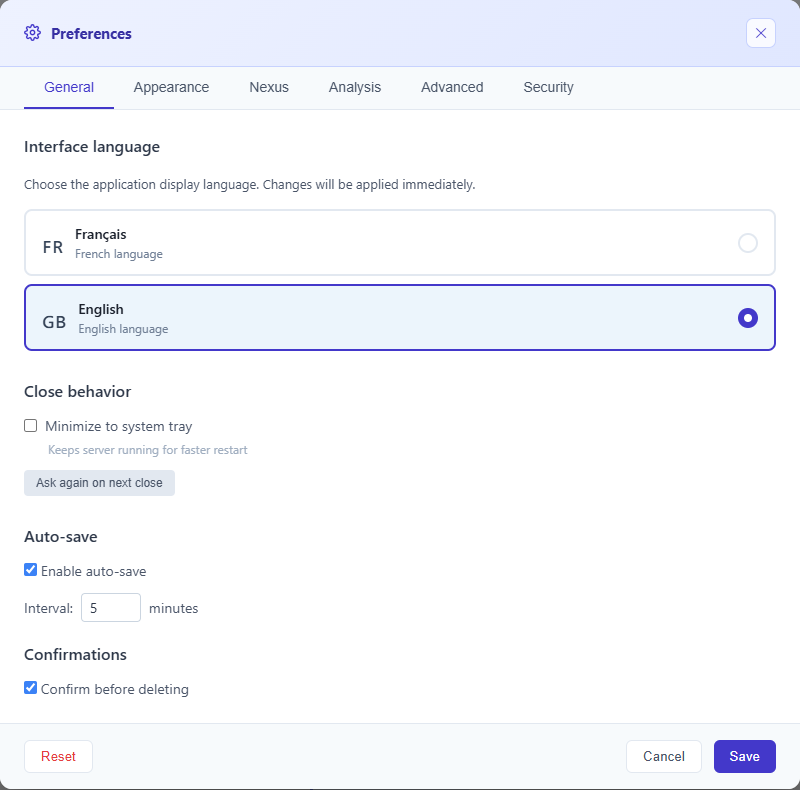 Figure 2: General and system settings.
Appearance Tab
Allows you to customise the working environment for greater visual comfort during extended analysis sessions.
- Theme: light, dark or automatic (follows the system theme).
- Font size: adjustable via a slider.
- Compact mode: reduces margins to display more information on screen.
- Animations: can be disabled to improve performance on older machines.
Dark mode reduces eye strain when examining spectra or heat maps in low-light environments.
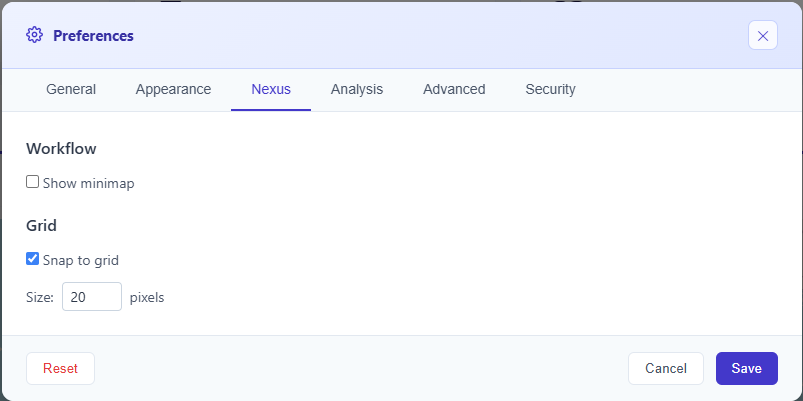 Figure 3: Theme and font customisation.
Nexus Tab Research+ / Pro
Configures the behaviour of the Nexus engine for isotopic fractionation modelling and analysis workflows.
- Mini-map: show or hide the reduced view of the workflow canvas.
- Grid snapping: automatic node alignment when dragging.
- Grid size: spacing in pixels for snapping.
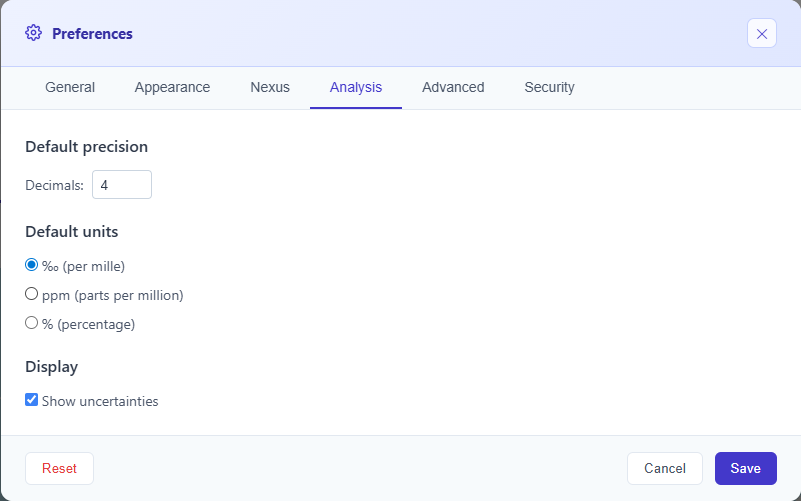 Figure 4: Nexus engine parameter configuration.
Analysis Tab
Controls the scientific precision of displayed and exported results.
- Decimal precision: number of significant figures displayed for isotopic ratios (0 to 10).
- Default units: per mille (‰), ppm or percentage — applies to all fractionation calculations.
- Uncertainty display: enables or disables the uncertainty column in the main table.
Figure 5: Numerical precision and unit settings.
Advanced Tab
Settings intended for system administrators and plugin developers.
- Developer mode: exposes internal logs and session diagnostics.
- Log level: Debug (all), Info, Warnings, Errors only.
- WebGL acceleration: can be disabled in case of display issues on certain GPU configurations.
Developer mode allows modification of the internal log structure. Only enable it at the request of IsoFind technical support.
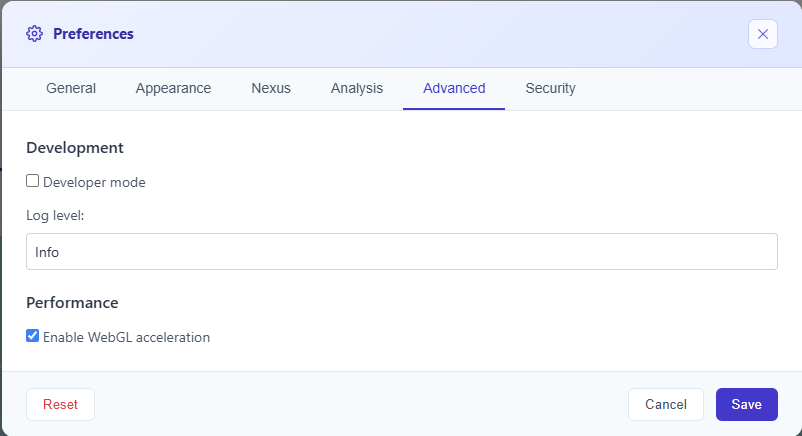 Figure 6: Diagnostic tools and advanced settings.
Security Tab
Controls two distinct aspects of workstation security: opening the local API to external scripts, and managing the administrator recovery code.
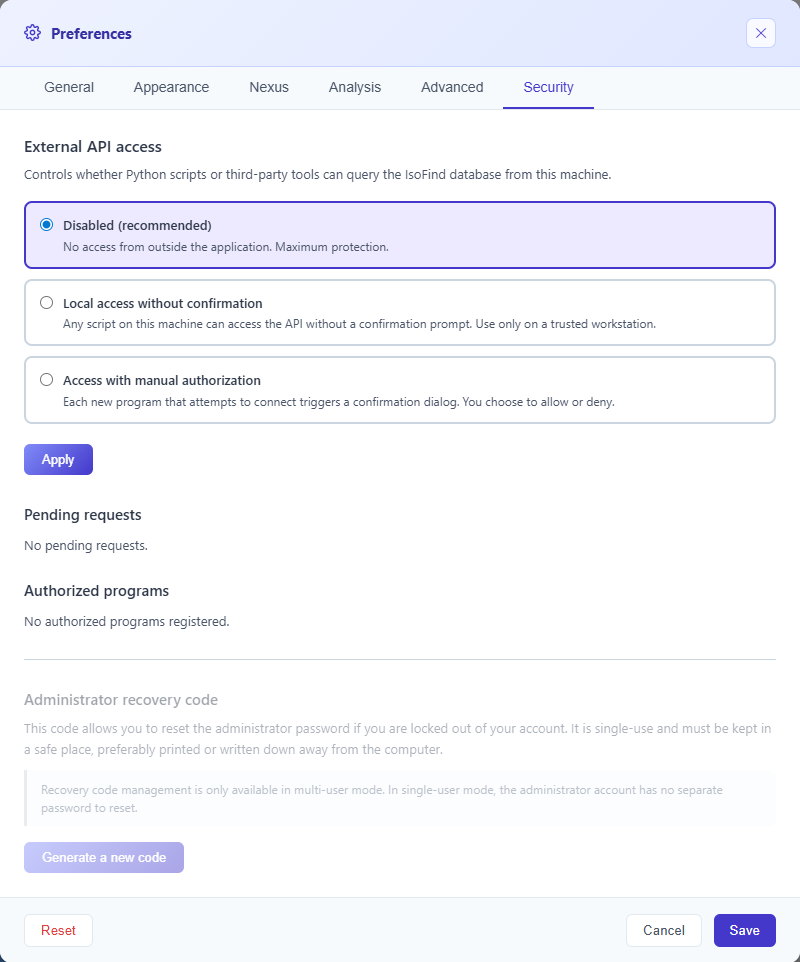 Figure 7: Security tab.
External API Access
IsoFind exposes a local API on 127.0.0.1:8001 that allows Python scripts or third-party tools to query your database from the same machine. This setting determines who can connect to it.
| Mode | Behaviour | Recommended use |
|---|---|---|
| Disabled | No access from outside the software. Maximum protection. | Default. Sensitive workstations, air-gap. |
| Local access without confirmation | Any script on this machine can access the API without a confirmation prompt. | Trusted workstation, personal use. |
| Access with manual authorisation | Each new programme attempting to connect triggers a confirmation window. You choose to allow or deny, with an option to remember the decision. | Shared or semi-open environment. |
In local access without confirmation mode, any software on the machine can read and export your entire database without any alert. In manual authorisation mode, identification is based on the executable path, which can be spoofed by software with elevated privileges. Disabled mode remains the only option guaranteeing complete protection.
Pending Requests and Authorised Programs
When "access with manual authorisation" mode is active, connection attempts awaiting validation appear in the Pending requests section. Already authorised programs are listed under Authorised programs, with the ability to revoke their access individually.
A notification banner automatically appears at the bottom of the main interface as soon as a request is pending, even if the preferences panel is closed.
Administrator Recovery Code
Available in multi-user mode only. This code allows the administrator password to be reset without access to the current session. It is single-use: after use, a new code is automatically generated.
Generating a new code immediately invalidates the previous one. If you have already noted a code, it will no longer work as soon as a new one is created. Keep the code printed or on a physical medium stored away from the computer.
The Generate a new code button displays the code in plain text once, in a modal window. It will no longer be accessible after that window is closed. To use it in case of lost access, see Activating a Licence and the recovery procedure on the login page.